How to Fix “Error Establishing a Database Connection” in WordPress (2026)
Your site is down and you are losing traffic every single minute. Do not panic. This is the most common WordPress error on the internet and in most cases it takes less than five minutes to fix. Let us solve it right now.
Why Am I Seeing This Error?
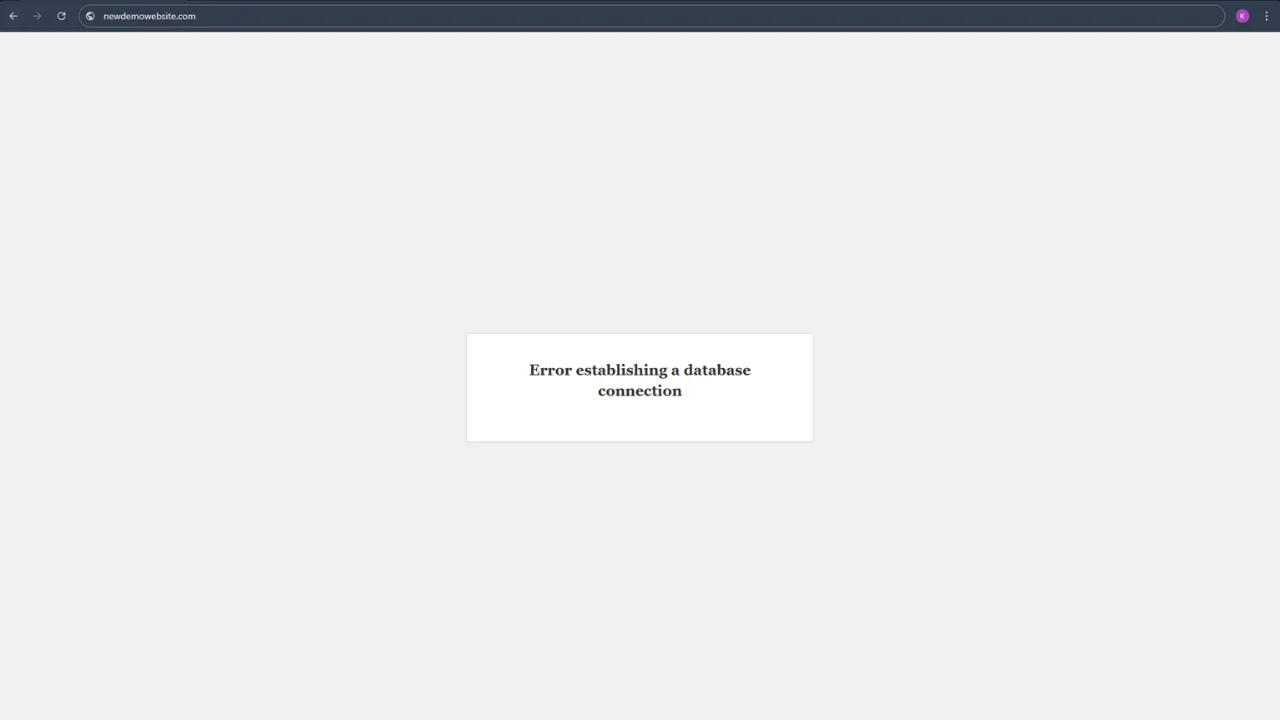
When you see the message “Error establishing a database connection”, it means WordPress tried to reach your MySQL database and got no response. Think of it like a lock and key. WordPress holds a key (your database credentials) and tries to open a door (your MySQL server). This error fires when one of three things goes wrong:
- The key is wrong (incorrect database credentials in your wp-config.php file)
- The lock is broken (your MySQL database has become corrupt)
- The door does not exist right now (your MySQL server is temporarily down)
According to the official WordPress documentation, this error is almost always rooted in one of these three causes. The steps below are ordered from most common to least common, so start at the top and work your way down.
Before you begin: Make sure the error is not just on your device. Open your site on a different browser or ask a friend to check. If it loads for them but not you, the problem is local (browser cache or DNS) and not a true database error.
Step 1: Check Your wp-config.php Database Credentials (The Most Common Cause)
This is the number one reason for a WordPress database connection error. Every WordPress installation has a file called wp-config.php that stores four critical pieces of information used to connect to your MySQL database:
- DB_NAME (the name of your database)
- DB_USER (the database username)
- DB_PASSWORD (the password for that user)
- DB_HOST (the server where the database lives, usually localhost, some hosts use specific IP or URL)
If any one of these values is wrong or has been recently changed, WordPress cannot connect and will throw this error immediately.
How to Find and Edit wp-config.php
You can access wp-config.php in two ways:
Option A: Via cPanel File Manager
- Log in to your cPanel account (usually at yourdomain.com/cpanel)
- Open File Manager
- Navigate to public_html (or whichever folder WordPress is installed in)
- Look for wp-config.php in the root of that folder
- Right-click it and choose Edit
Option B: Via FTP (FileZilla or similar)
- Connect to your server using your FTP credentials
- Navigate to the WordPress root folder
- Download wp-config.php to your desktop
- Open it with a plain text editor like Notepad or VS Code
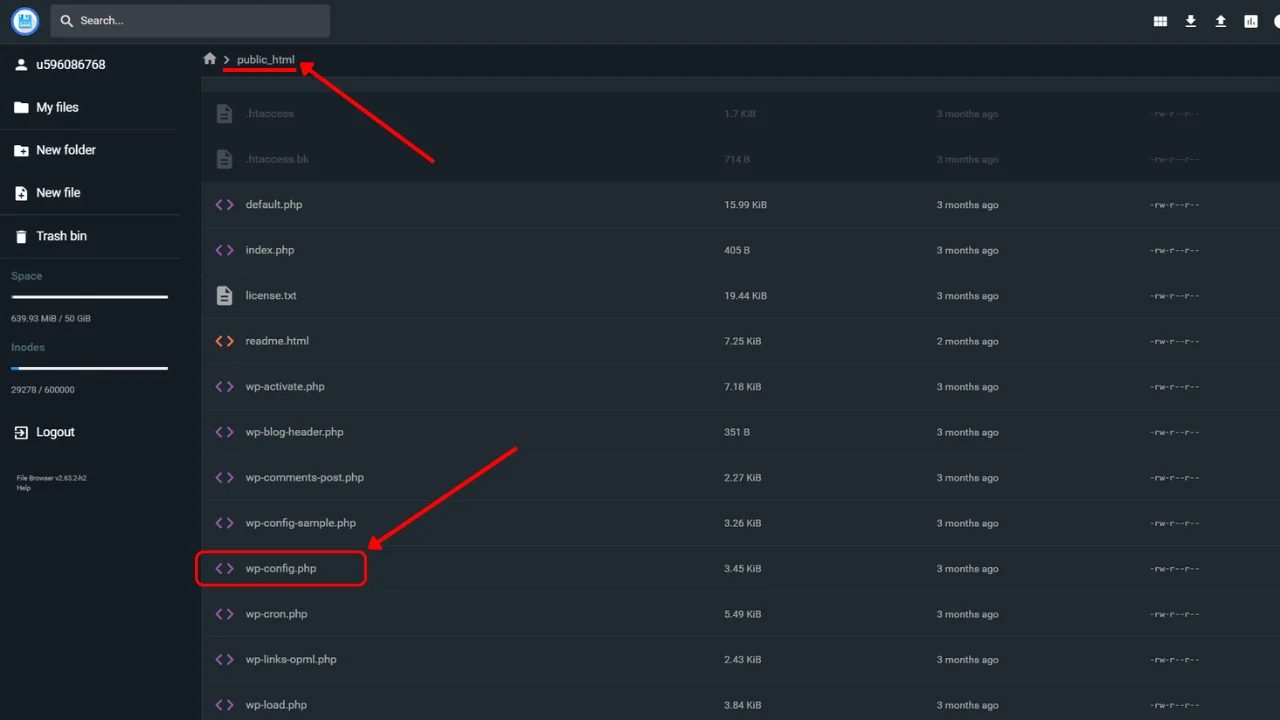
Once you have the file open, you are looking for a section that looks like this:
php
define( ‘DB_NAME’, ‘your_database_name’ );
define( ‘DB_USER’, ‘your_database_username’ );
define( ‘DB_PASSWORD’, ‘your_database_password’ );
define( ‘DB_HOST’, ‘localhost’ );
How to Verify These Values Are Correct
Now you need to cross-reference what is written in wp-config.php against the actual MySQL database credentials stored on your server.
- Go back to cPanel and scroll down to the Databases section
- Click on MySQL Databases
- Under the “Current Databases” and “Current Users” sections, confirm the database name and username match exactly what is in your wp-config.php file
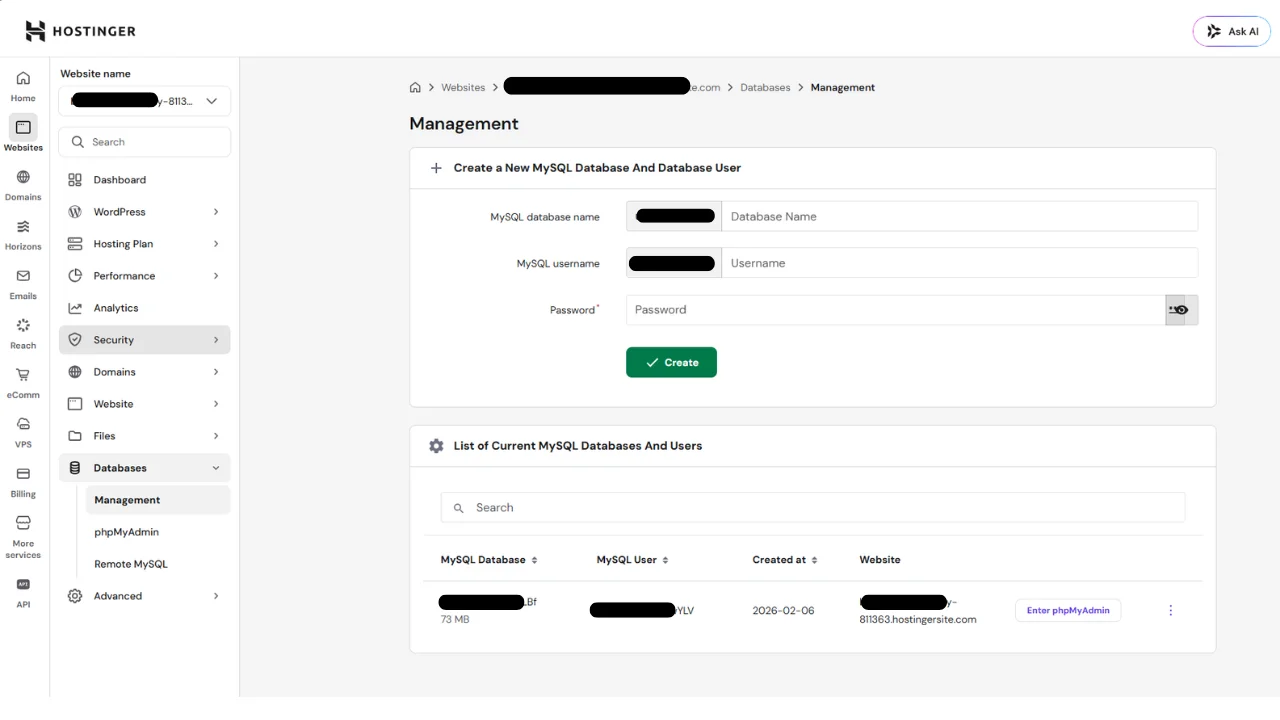
The most common mistake here is a recently changed password. Many web hosts auto-rotate passwords or admins update them through phpMyAdmin without remembering to update wp-config.php. If the password in your file does not match what your host has on record, that is your fix. Update the DB_PASSWORD value, save the file, and reload your website.
If all four values look correct and the error persists, move to Step 2.
Step 2: Fix a Corrupted WordPress Database
Error Establishing a Database Connection in wp-admin Only?
Here is an important distinction. If your homepage loads fine but you get the database error when visiting yoursite.com/wp-admin, this is a sign of database table corruption rather than a credentials problem. This is because WordPress uses different database queries for the front end versus the dashboard.
WordPress has a built-in repair tool for exactly this situation. Here is how to activate it.
How to Use WP_ALLOW_REPAIR
- Open your wp-config.php file (same steps as above)
- Find the line that says /* That’s all, stop editing! Happy publishing. */
- Add this line directly above that comment:
php
define(‘WP_ALLOW_REPAIR’, true);
- Save the file
- Visit this URL in your browser (replace yourdomain.com with your actual domain):
https://yourdomain.com/wp-admin/maint/repair.php
- You will see a page with two buttons: Repair Database and Repair and Optimize Database. Click Repair and Optimize Database
- Wait for the process to complete. WordPress will list each table it checks and repairs
- Important: Once your site is back online, remove the define(‘WP_ALLOW_REPAIR’, true); line from wp-config.php immediately. Leaving it active is a security risk because anyone can access that repair page
According to the WordPress Developer Handbook, the repair page is accessible to anyone when this constant is enabled, which is why removing it after use is non-negotiable.
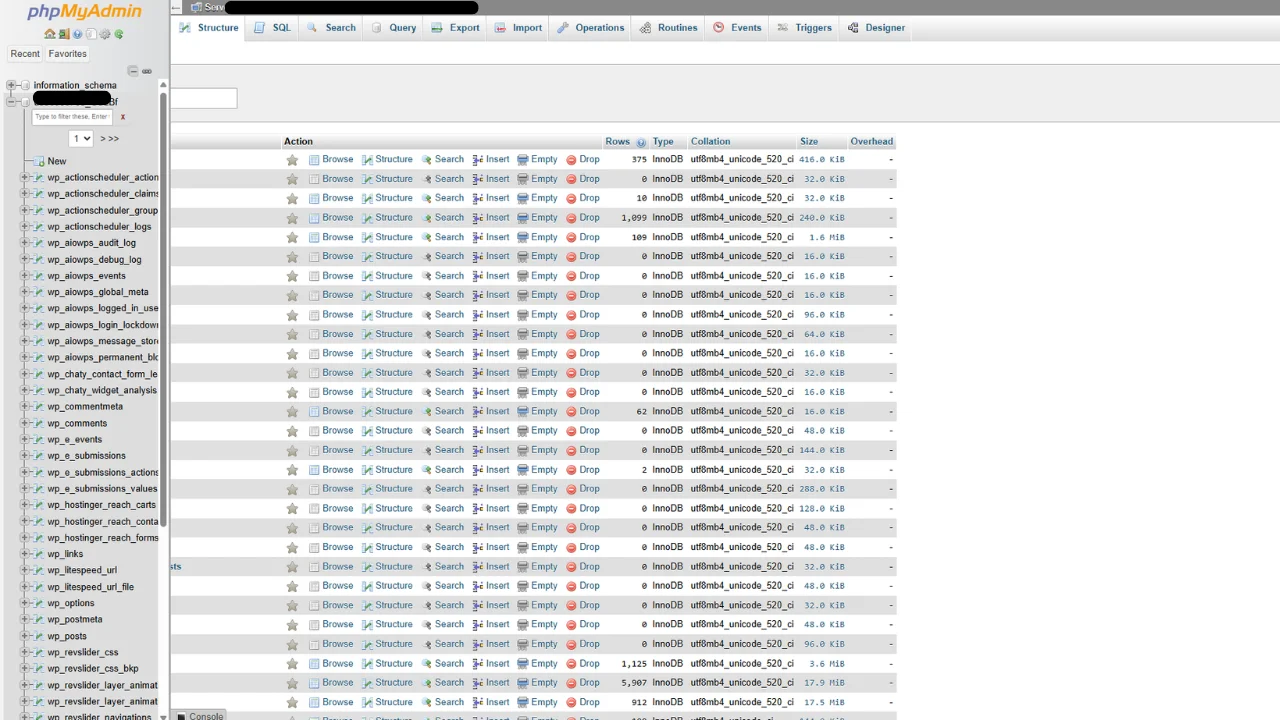
If the repair tool runs successfully but the error comes back, the corruption may be deeper. In that case, you can use phpMyAdmin (also found inside cPanel) to run a manual repair:
- Open phpMyAdmin from cPanel
- Select your WordPress database from the left sidebar
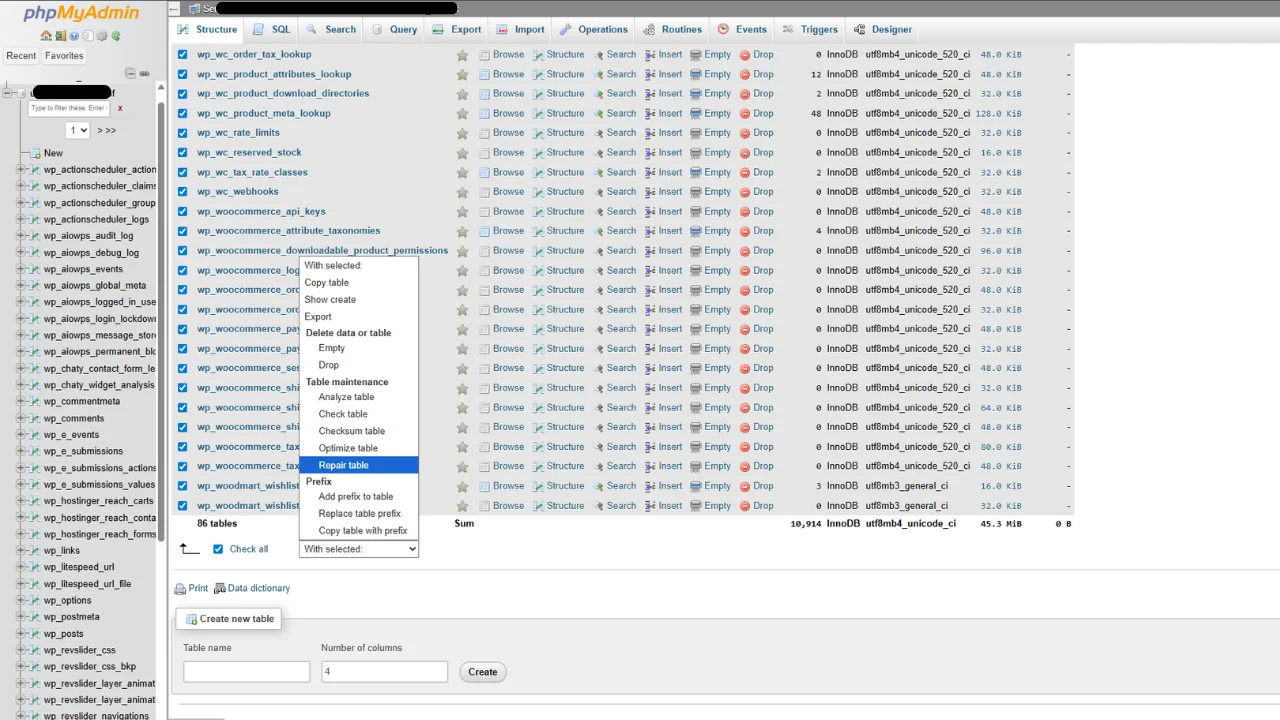
- Click Check All at the bottom to select all tables
- In the dropdown that says “With selected,” choose Repair table
Step 3: Check if Your MySQL Server is Down
Sometimes the problem has nothing to do with your WordPress files at all. Your MySQL server may simply be down.
This happens most often on shared hosting plans. When traffic spikes on your site (or on a neighboring site sharing the same server), the host’s MySQL service can become overloaded and temporarily refuse new connections. Budget shared hosting from providers with oversold servers is the most common place to see this.
How to Check if MySQL is the Problem
Quick Test: Try visiting a completely different page on your site. If every single page throws the same error, including pages that should be simple (like your privacy policy), the MySQL server is very likely down rather than a credentials issue, which usually produces errors only on specific pages.
Check your host’s status page. Most reputable web hosts maintain a live status page:
- SiteGround: status.siteground.com
- Bluehost: status.bluehost.com
- WP Engine: wpengine.com/status
- Cloudways: status.cloudways.com
If there is a reported incident with MySQL or database services, the only fix is to wait for your host to resolve it and then monitor the status page for an “all clear.”
No incident reported? Open a live chat or support ticket with your hosting provider and tell them: “My WordPress site is showing ‘Error establishing a database connection’ and my wp-config.php credentials are confirmed correct. Can you check if the MySQL service is running for my account?”
Hosts can usually confirm within minutes whether the MySQL server is accessible on their end.
Step 4: Fixing Database Errors After a Site Migration
Error Establishing a Database Connection WordPress After Migration
If you just moved your WordPress site from one server to another (or from a local development environment to a live server) and now see this error, you are dealing with a migration-specific problem. This is one of the most common scenarios that brings people to this page.
When you migrate a site, the database itself comes with you but the connection settings in wp-config.php often need to be updated to match the new server environment.
The DB_HOST Value Almost Always Changes
On most shared hosting servers, the DB_HOST value in wp-config.php is set to localhost. But on some managed or VPS hosting environments, the database server lives on a separate machine and uses either a specific IP address or a hostname like:
DB_HOST = ‘127.0.0.1’
DB_HOST = ‘mysql.yourhostingprovider.com’
DB_HOST = ‘192.168.1.100’
After a migration, always contact your new host and ask: “What should my DB_HOST value be for a WordPress installation?” They will give you the exact string to use.
Migration Checklist for wp-config.php
After moving your site, verify all four values in wp-config.php match the new server:
| Setting | Where to Get the Correct Value |
| DB_NAME | Your new host’s MySQL Databases panel in cPanel |
| DB_USER | Your new host’s MySQL Databases panel in cPanel |
| DB_PASSWORD | The password you set when creating the new database user |
| DB_HOST | Ask your new hosting provider directly |
Localhost to Live Server (XAMPP Users)
If you are a developer who built the site locally on XAMPP and is now pushing it to a live server, your wp-config.php was almost certainly set to localhost with a blank or simple password like root. Your live server will have different MySQL credentials entirely. You need to:
- Create a new MySQL database on your live hosting account
- Import your database using phpMyAdmin
- Update all four credential values in wp-config.php to match the live server
- Run a search-and-replace on the database to update your site URL (the local URL like localhost/mysite needs to change to www.yourdomain.com)
A reliable tool for the URL search-and-replace step is Better Search Replace, a free plugin listed in the official WordPress plugin directory.
Still Broken? Let a Professional Fix It
If you have gone through all four steps above and your WordPress database connection error is still showing, you are likely dealing with one of the following deeper issues:
- A corrupted database that is beyond what the built-in repair tool can handle
- A server-level MySQL configuration problem your host needs to fix internally
- File permission issues preventing WordPress from reading wp-config.php correctly
- A hacked site where database credentials were changed by an attacker
These issues require hands-on server access and are beyond what a standard user should attempt without technical knowledge.
Our WordPress rescue team can get your site back online in under an hour. We handle emergency WordPress recovery including database corruption, server misconfigurations, and post-hack cleanups. Contact us here and include a note that you came from this guide so our team can prioritize your case.
Quick Reference: Summary of All Fixes
| Scenario | Most Likely Cause | First Fix |
| Error on all pages | Wrong DB credentials or MySQL down | Check wp-config.php or contact host |
| Error on wp-admin only | Corrupt database tables | Run WP_ALLOW_REPAIR |
| Error after migration | Wrong DB_HOST value | Update DB_HOST in wp-config.php |
| Error on localhost/XAMPP | Root credentials not matching | Use root as DB_USER and blank password |
| Error after cPanel changes | Password was rotated | Update DB_PASSWORD in wp-config.php |
Frequently Asked Questions
Does this error mean my data is gone?
No. The error establishing a database connection message means WordPress cannot reach the database right now. It does not mean the data has been deleted. Your content is almost certainly still intact.
Can a plugin cause this error?
Rarely, but it is possible. A buggy plugin that runs heavy database queries during an update can temporarily corrupt a table. If the error started right after a plugin update, the WP_ALLOW_REPAIR method in Step 2 is your best first move.
How do I find my database name if I never set it up myself?
Log in to cPanel, go to MySQL Databases, and every database associated with your account will be listed there. Match it against what is in your wp-config.php file.
What if I cannot access cPanel or FTP?
Contact your hosting provider’s support team immediately. They have backend access to your server and can verify your MySQL credentials and server status directly.
Sources and Further Reading:
- WordPress Codex: Editing wp-config.php
- WordPress Developer Handbook: Automatic Database Optimizing
- WordPress Support: FAQ Troubleshooting
- phpMyAdmin Official Documentation