WordPress 7.0 Codenamed Armstrong Is Here: Everything New, Everything Changed
WordPress 7.0, codenamed Armstrong, officially released on May 20, 2026, and it is the most ambitious WordPress release in years. This is not a routine update with a handful of bug fixes. WordPress 7.0 introduces a native AI infrastructure, a completely rebuilt admin dashboard, new core blocks, responsive design controls, and a redesigned revision system. It also cuts a headline feature (real-time collaboration) that many were counting on. Here is a thorough breakdown of everything that actually shipped, what did not, and whether you should upgrade today.
What’s New at a Glance
Before we go deep, here is the full picture of the release:
- AI: WP AI Client, Abilities API, Connectors Screen, and MCP support.
- Admin UI: Modern admin theme, DataViews, View Transitions, and Command Palette.
- Blocks: Breadcrumbs block and Icons block (featuring 80+ SVGs).
- Editor: Per-device responsive controls, mobile navigation overlays, layout tools, and typography tools.
- Revisions: Visual comparison with color-coded diffs, plus template and pattern support.
- Developer: PHP-only block registration, font management dashboard, and extended APIs.
- Security: Role selector lockdown, PHP 7.4 minimum (with PHP 8.3 or higher recommended).
- Removed: Real-time collaboration (pulled May 8, 2026, due to server load and stability issues).
Now let’s unpack each one.
Native AI Infrastructure: WordPress Meets Large Language Models
This is the flagship change. WordPress 7.0 does not ship with an AI chatbot or a built-in content writer. Instead, it builds the plumbing: a provider-agnostic foundation that lets plugins, themes, and external AI agents interact with your WordPress site intelligently.
WP AI Client
Think of the WP AI Client as the $wpdb database class equivalent for AI. It is a unified PHP and JavaScript interface for communicating with any generative AI model (such as OpenAI, Anthropic, or Google Gemini). You do not need to write provider-specific code anymore. The WP AI Client handles request routing, credential discovery, and response formatting through a single, consistent API.
The client does not ship with any built-in AI provider. It is intentionally vendor-neutral.
Abilities API and MCP Support
The Abilities API is where things get interesting for developers. It creates a centralized registry where plugins can expose their functionality as machine-readable “abilities.” Each ability is registered with a defined input and output schema, a human-readable description, and explicit permission checks.
Here is what this enables: an external AI agent can query your site’s REST endpoint (/wp-json/wp-abilities/v1/abilities), discover what your site can do (such as create posts, resize images, or send emails), and execute those actions natively. Combined with Model Context Protocol (MCP) support, this means WordPress sites can now participate in the broader agentic AI ecosystem.
Developers register abilities using the wp_register_ability() function on the wp_abilities_api_init hook. A client-side counterpart is available via the @wordpress/abilities JavaScript package.
Connectors Screen
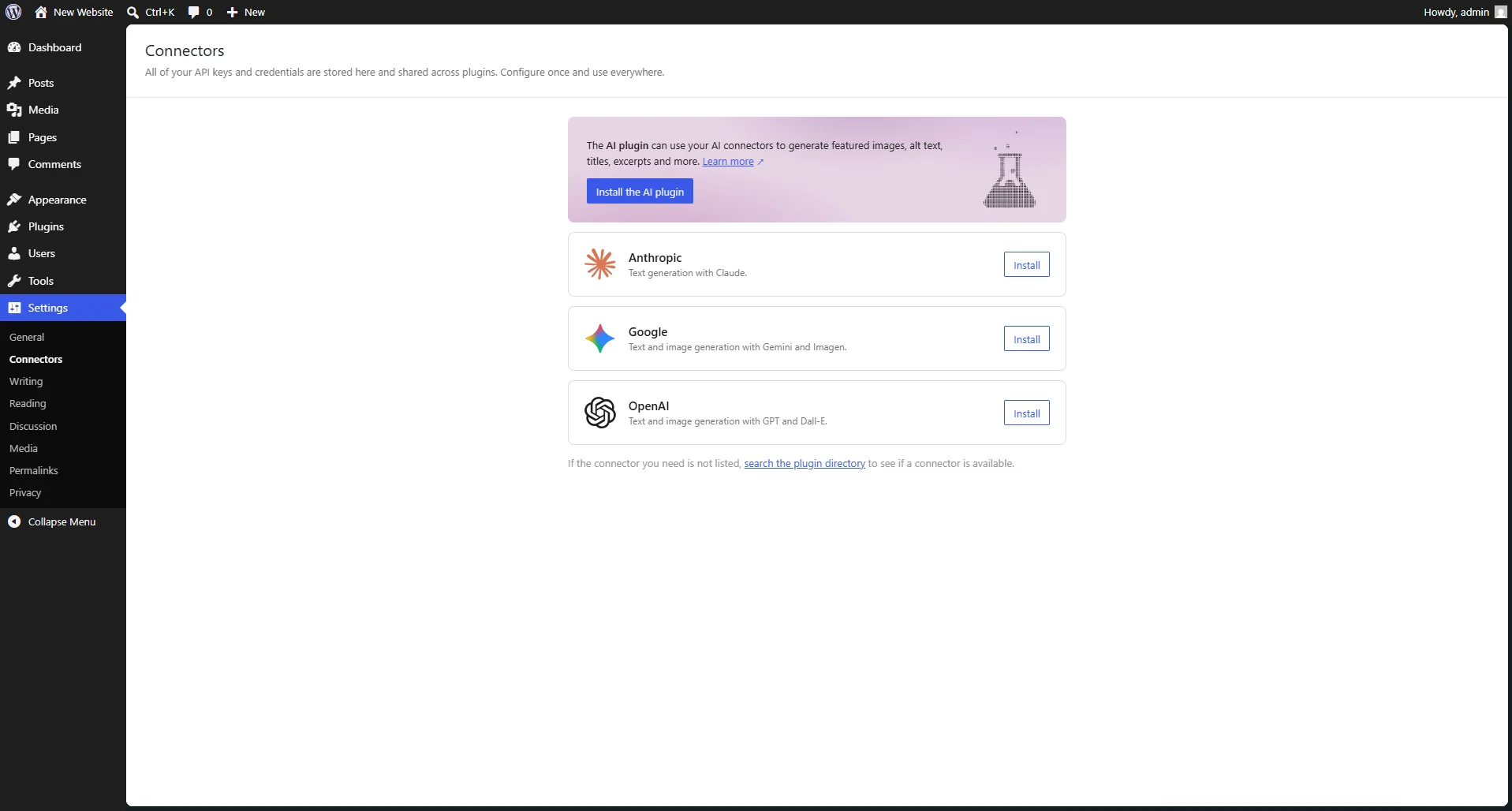
Head to Settings and then select Connectors, and you will find a new centralized dashboard for managing API keys. Instead of each plugin storing its own API credentials (a longstanding security headache), plugins can now consume AI services through the Connectors API. You have one place to add your keys and one place to revoke them.
What This Means in Practice
WordPress 7.0 does not write your blog posts for you out of the box. What it does is make it dramatically easier for plugin developers to build AI-powered features (such as content generation, SEO automation, image alt text, and intelligent search) without each plugin reinventing authentication, provider management, or API abstraction. That is a major foundational shift.
The Admin Dashboard Got a Complete Makeover
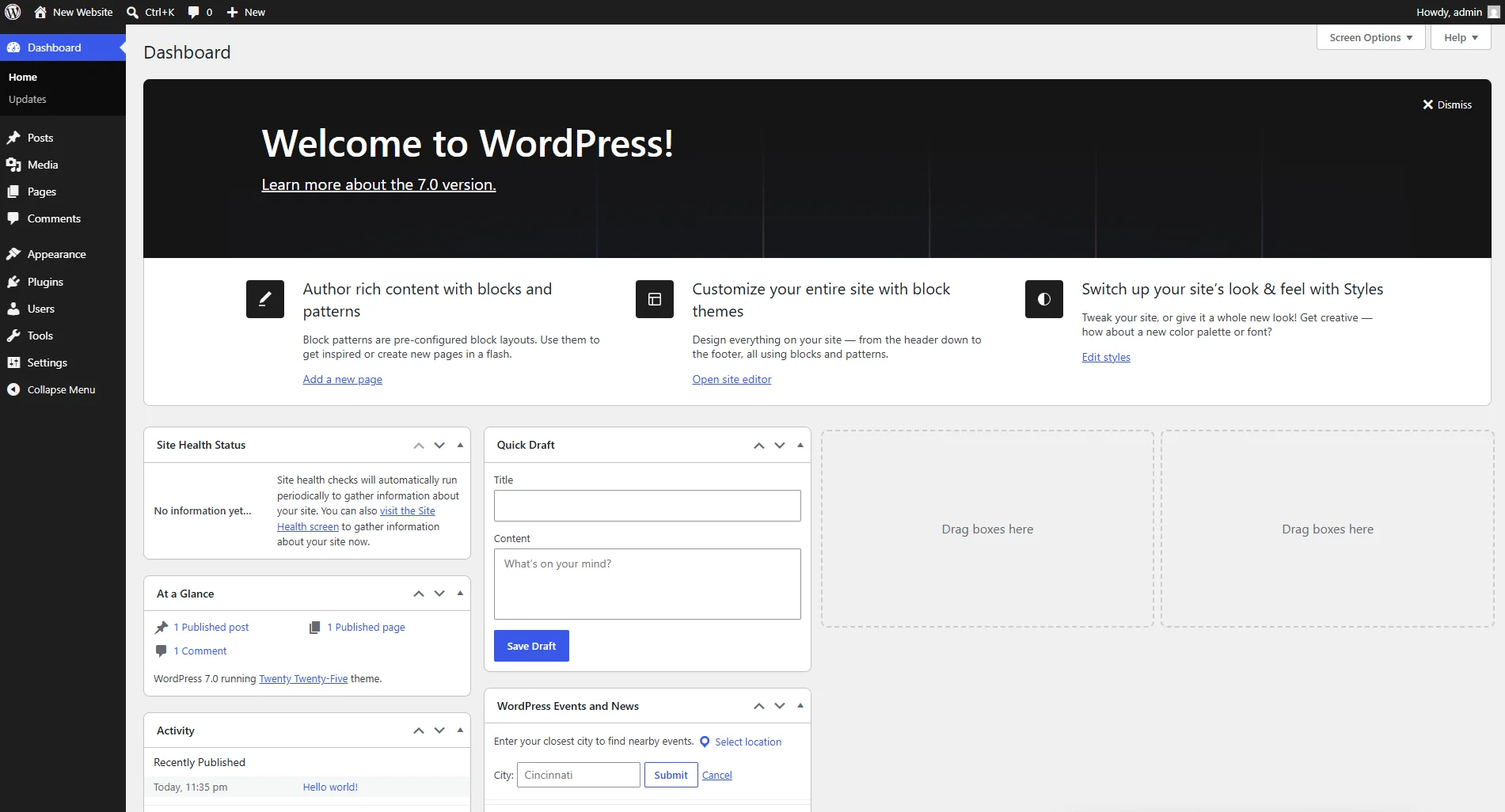
If you have been using WordPress for years, the admin area has felt dated. WordPress 7.0 addresses this head-on with three major changes.
The new DataViews grid layout for managing pages in WordPress 7.0.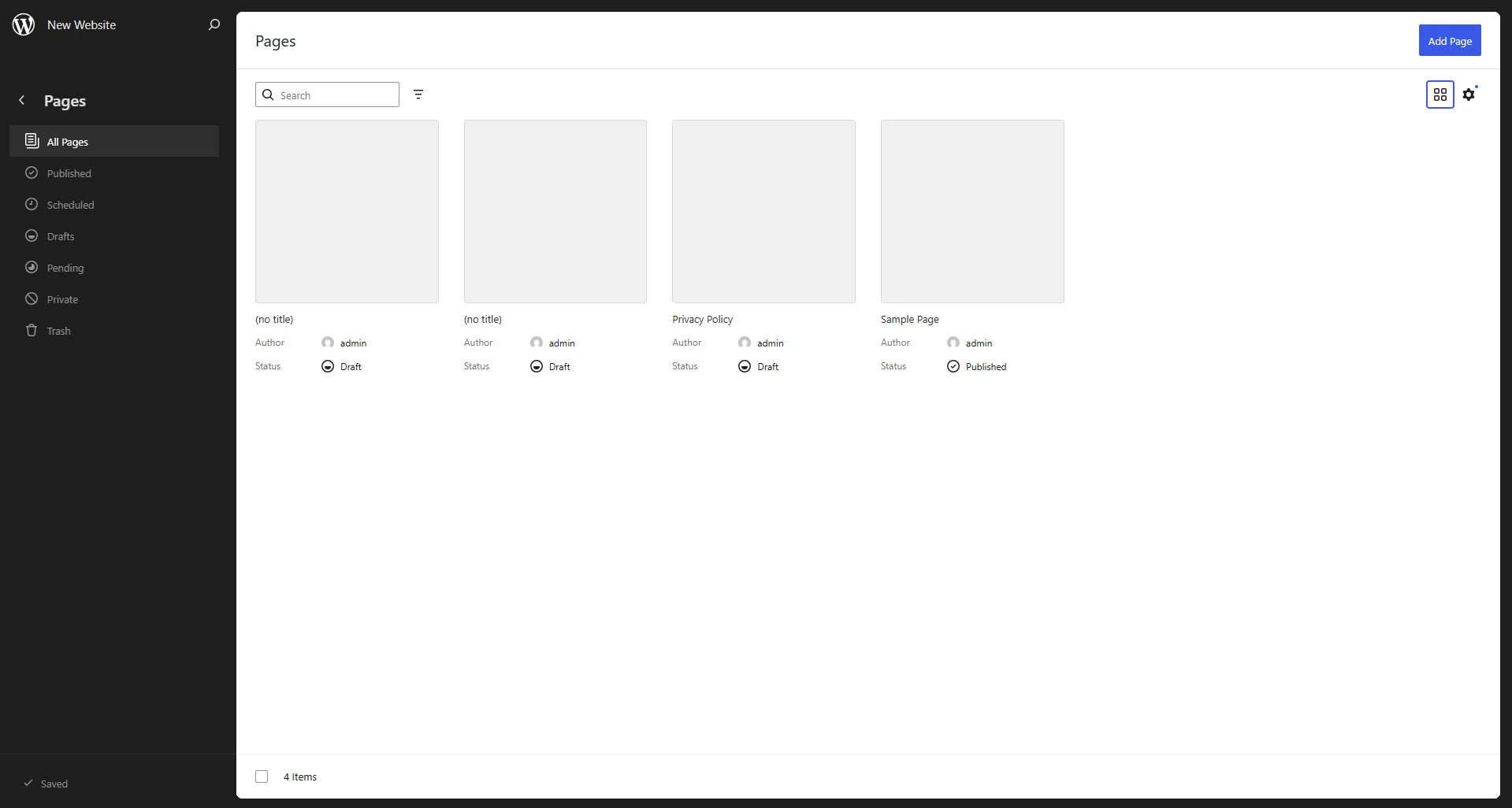
Modern Admin Theme
The default admin color scheme has been overhauled. You will notice a cleaner layout, higher contrast, refreshed typography, and a new color palette that feels genuinely modern. The visual refresh touches everything: headers, the Customizer, and user screens. WordPress also introduced a standardized Design System under the hood, unifying buttons, form elements, and UI patterns across the entire admin interface.
DataViews: Goodbye, WP_List_Table
This is a big change for power users. DataViews replaces the decades-old WP_List_Table class, which was the traditional tabular view you saw when managing posts, pages, users, and plugins.
DataViews is React-based and offers:
- Multiple layouts: Table, grid, and list views are available. You can pick whatever layout suits your workflow. The grid layout is particularly useful for media libraries or portfolio content.
- Instant interactivity: You can filter, sort, and perform bulk edits instantly without any page reloads.
- Custom views: You can create and save views tailored to your editorial workflow, filtering by author, status, date, or any custom query.
It feels less like a traditional CMS admin page and more like a modern web application.
View Transitions
Navigating between admin screens used to require full page reloads. WordPress 7.0 implements the View Transitions API to deliver smooth, animated transitions (such as zoom effects and slides) when you move between supported screens. It respects the system-level reduced motion accessibility setting, so users who prefer no animation will not be disrupted.
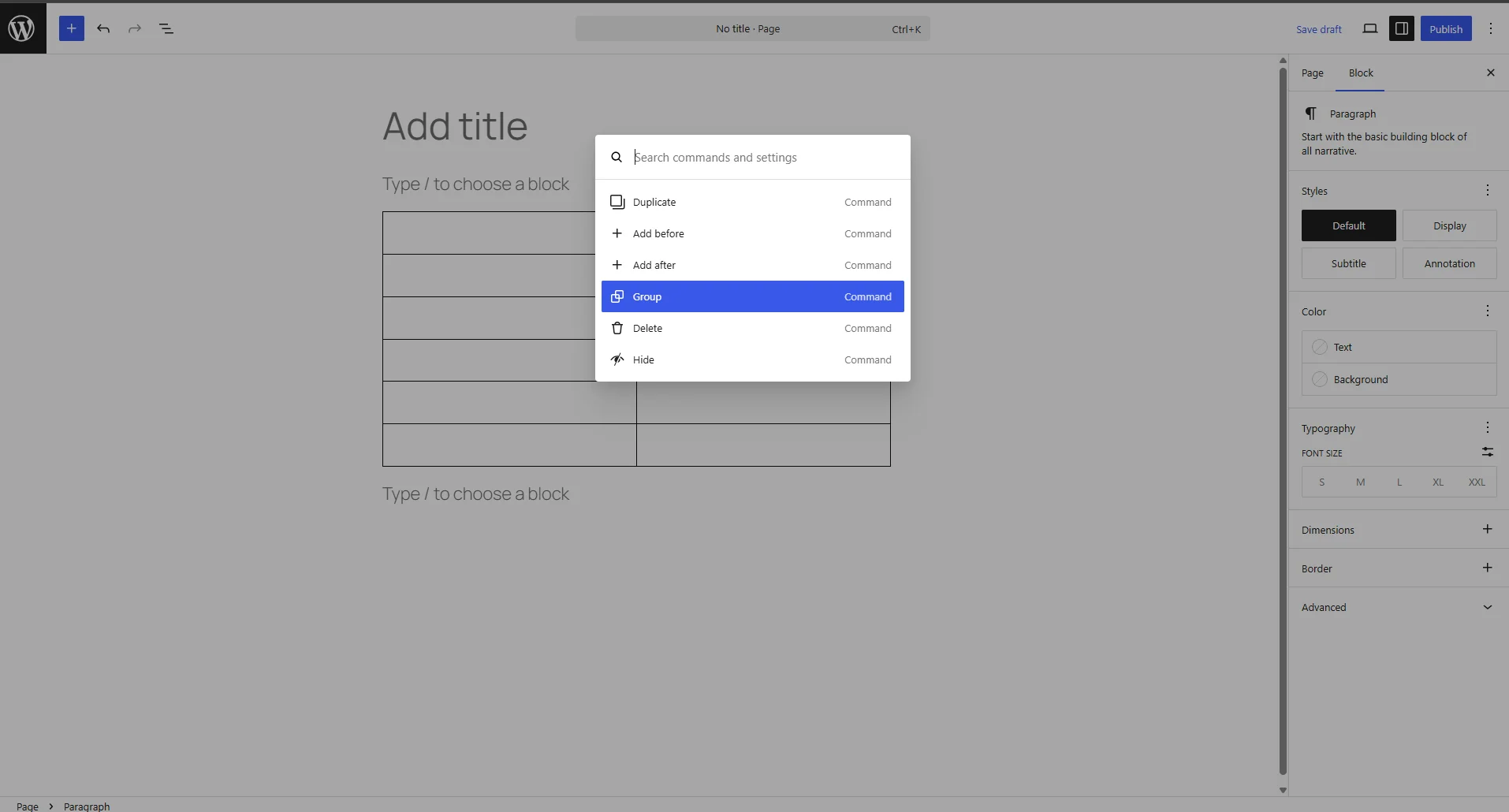
Command Palette
Press Cmd+K (on Mac) or Ctrl+K (on Windows) from anywhere in the admin area and you get an instant search overlay. You can jump to any screen, setting, action, or piece of content without clicking through menus. A new shortcut icon also sits in the upper admin bar for mouse users. If you have used Spotlight on macOS, VS Code’s command palette, or Notion’s quick find, it is that kind of navigation experience.
New Blocks and Editor Improvements
WordPress 7.0 continues the Gutenberg evolution with meaningful new blocks and design controls.
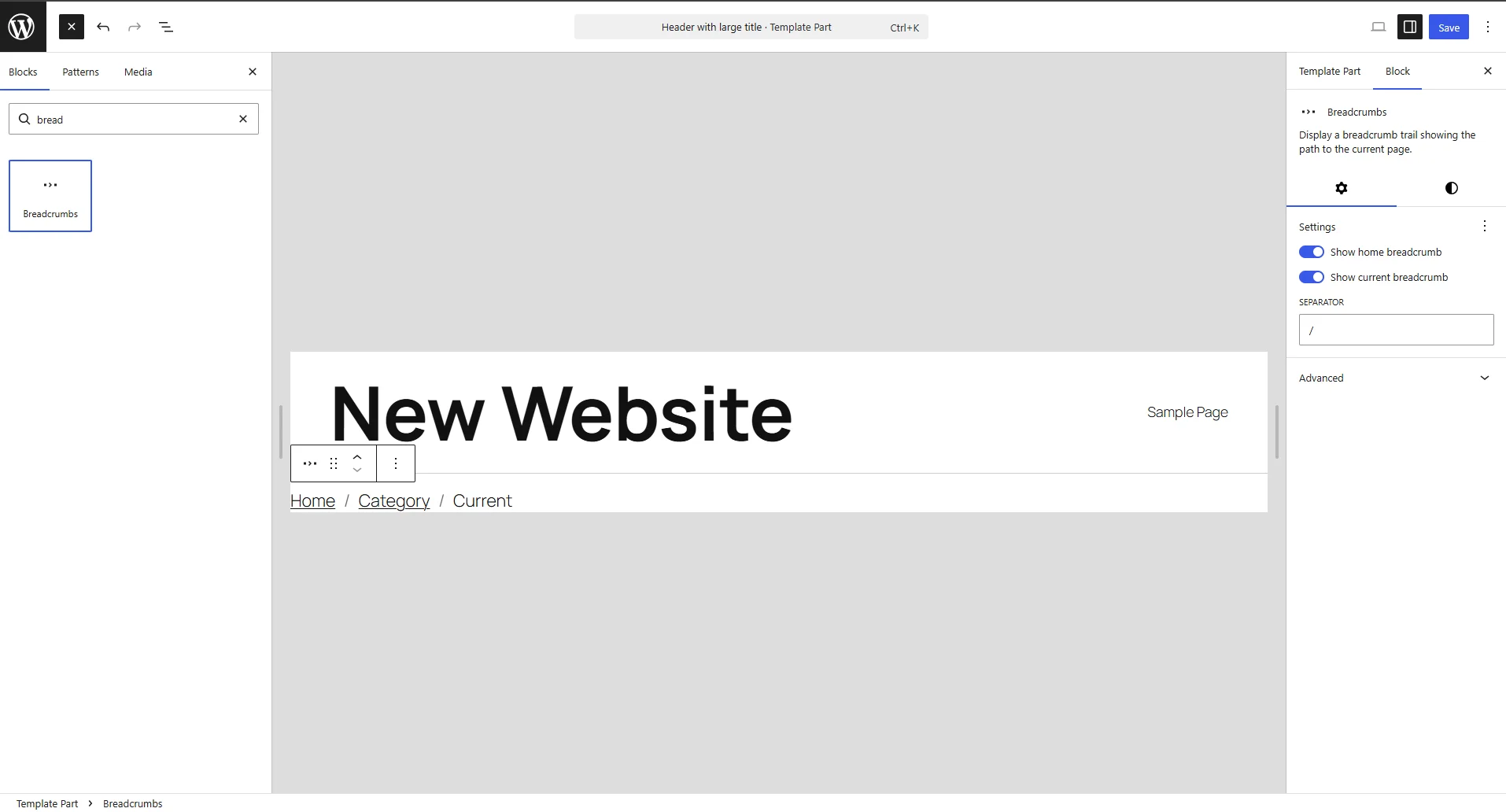
Breadcrumbs Block
A native Breadcrumbs block is now part of the core installation. Drop it into a header template and it auto-generates a navigational hierarchy based on your site’s structure. It supports page hierarchies (parent and child relationships) as well as taxonomy term hierarchies. Developers can filter the breadcrumb trail output for custom logic.
This removes the need to install a separate plugin just to display breadcrumbs.
Icons Block
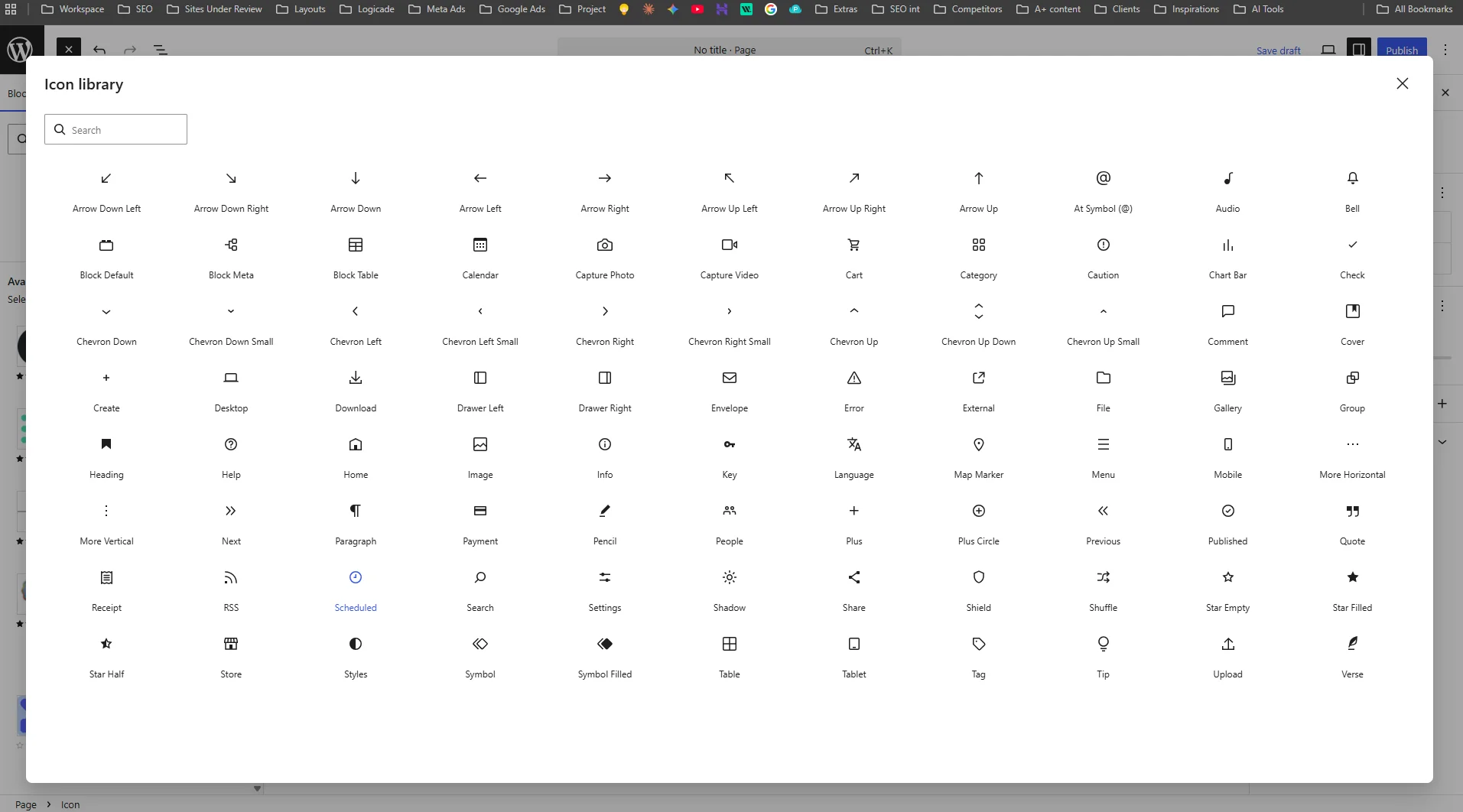
Need an icon in your content? WordPress 7.0 ships with a built-in Icons block containing 80+ SVG icons. You can customize the size, color, background, and margins directly from the editor. This eliminates the need for icon plugins or manually pasting SVG code into Custom HTML blocks.
Responsive Controls: Per-Device Block Visibility
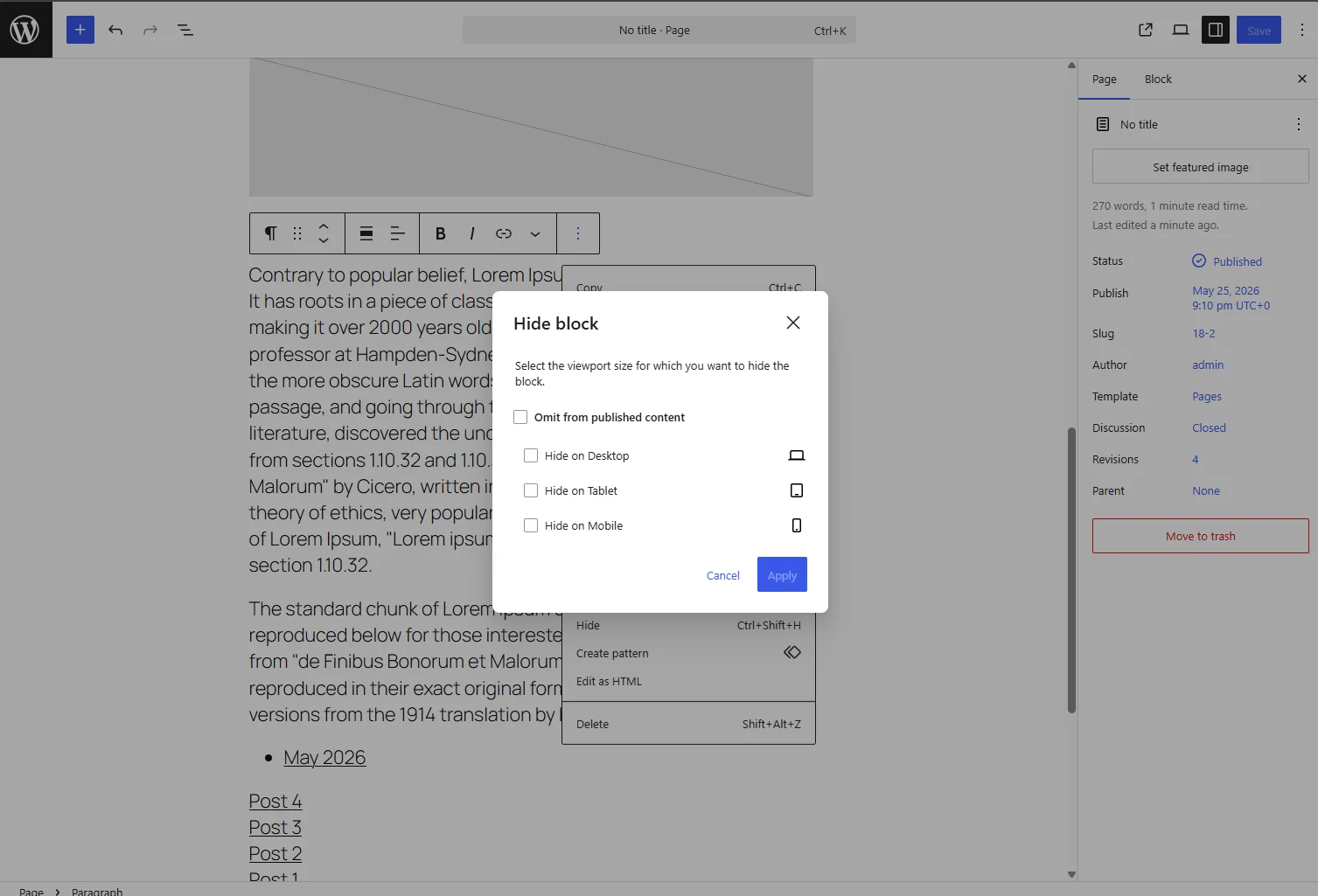
This is a feature the community has been requesting for years. You can now show or hide specific blocks based on device type (desktop, tablet, or mobile) directly from the block settings panel. You do not need custom CSS media queries or third-party plugins.
The List View now displays visual indicators next to blocks that have active visibility rules, making it easy to audit which elements are hidden on certain screen sizes.
Responsive Grid Block
The Grid block has been updated to be natively responsive. You can fine-tune the minimum column size and maximum number of columns without writing custom CSS. Layouts now adapt naturally to different viewports.
Mobile Navigation Overlays
You can now customize the mobile hamburger menu overlay using blocks and patterns. These overlays function as template parts, giving you full design control over what users see when they tap the mobile menu, going far beyond just a simple list of links.
Layout and Typography Upgrades
Several smaller but impactful design tools have been added:
- Text indentation support.
- Text columns for multi-column content layouts.
- Dimension presets for consistent spacing.
- Aspect ratio controls for images, including wide and full-width variations.
Revision System Overhaul
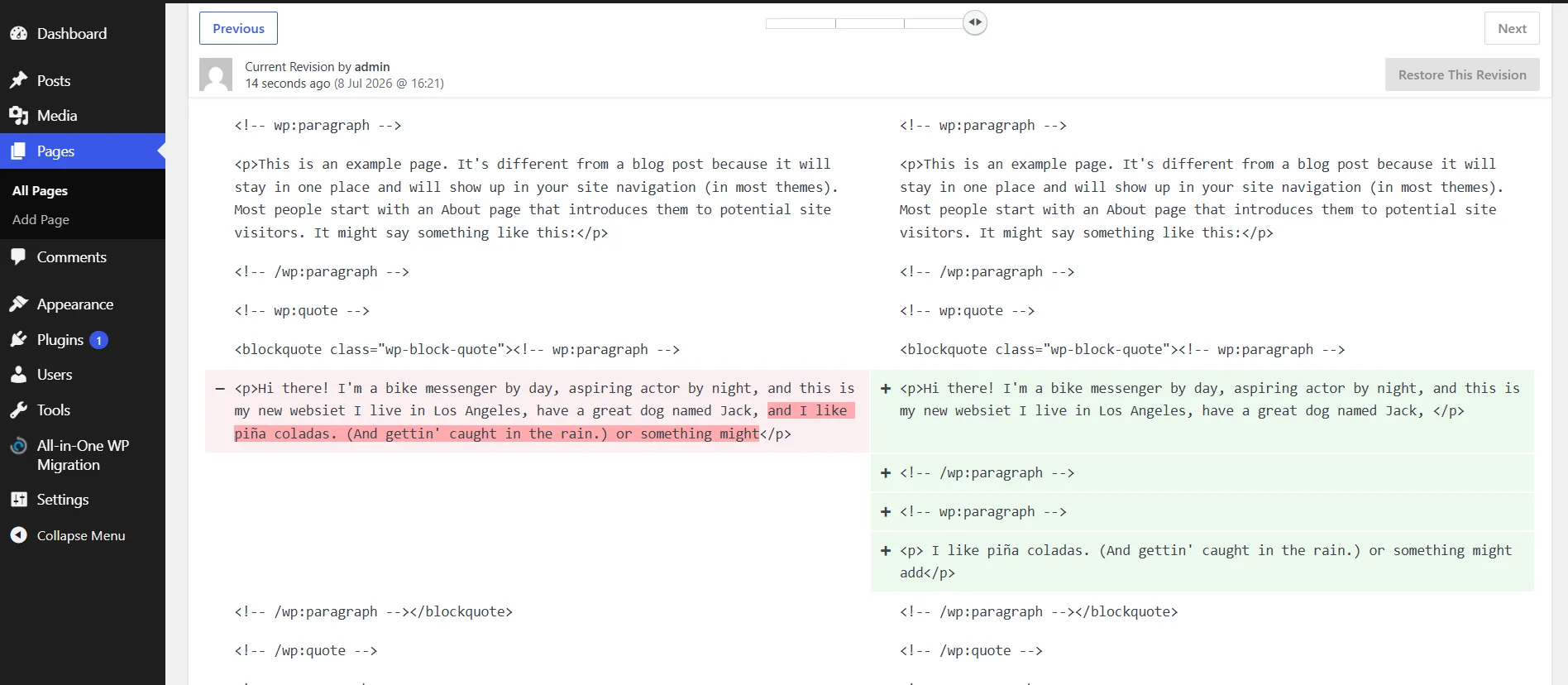
The old revision interface showed side-by-side raw HTML diffs. It was functional but hard to parse visually. WordPress 7.0 replaces this with a visual, editor-like comparison view.
Changes are displayed at the block level with clear color coding:
- Yellow: Modified content.
- Red: Deleted content.
- Green: Added content.
A slider lets you move through the revision timeline. Most importantly, the revision system now extends to templates, template parts, and patterns, rather than just posts and pages. If you have ever made a change to a template and could not figure out what broke, this feature will save you.
Developer-Focused Features
PHP-Only Block Registration
Not every block needs a React build pipeline. WordPress 7.0 introduces PHP-only block registration. You can register and render blocks entirely server-side via register_block_type() with ‘autoRegister’ => true in the supports array.
WordPress will automatically generate inspector controls in the editor sidebar for supported attribute types (string, number, integer, boolean, and enum). This is ideal for server-rendered components (like CTA banners, author boxes, or theme-specific modules) where a full JavaScript build setup is overkill.
This is not meant to replace JavaScript-based block development for complex, highly interactive blocks. It is a pragmatic addition for simpler use cases.
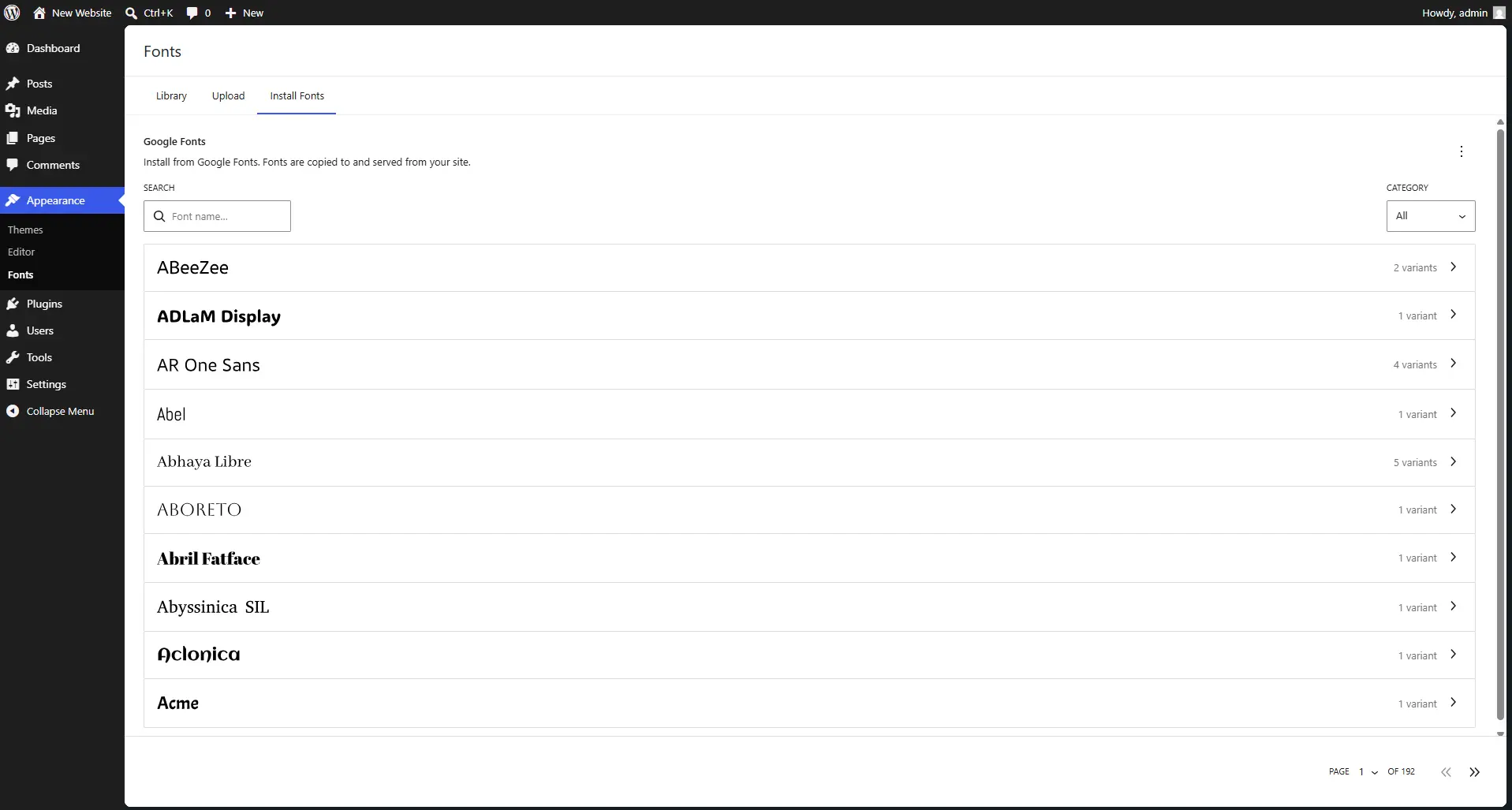
Font Management Dashboard
A new dedicated dashboard page lets you install, upload, and manage font collections without digging into theme files or the Site Editor’s typography panel. This centralizes font management for both classic and block themes.
Extended APIs and Block Bindings
WordPress 7.0 expands APIs for the Site Editor, adds iframed post editor support, and introduces expanded block bindings for dynamic data. If you are building themes or plugins that leverage the block editor, there is significantly more surface area to work with.
Security and PHP Requirements
Role Security Changes
A subtle but important security improvement: the Administrator and Editor roles have been removed from the default role selector in Settings > General. This prevents site owners from accidentally assigning high-privilege roles to new user registrations, a misconfiguration that has historically been a common attack vector.
PHP Version Requirements
Here is the breakdown of supported PHP versions:
- Minimum: PHP 7.4 (support for PHP 7.2 and 7.3 has been dropped).
- Recommended: PHP 8.3 or higher.
- Best Performance: PHP 8.4 or 8.5.
If your hosting environment is still running PHP 7.2 or 7.3, you will need to upgrade before updating to WordPress 7.0. The dashboard will display warnings if you are on an unsupported PHP version.
What Did Not Ship: Real-Time Collaboration
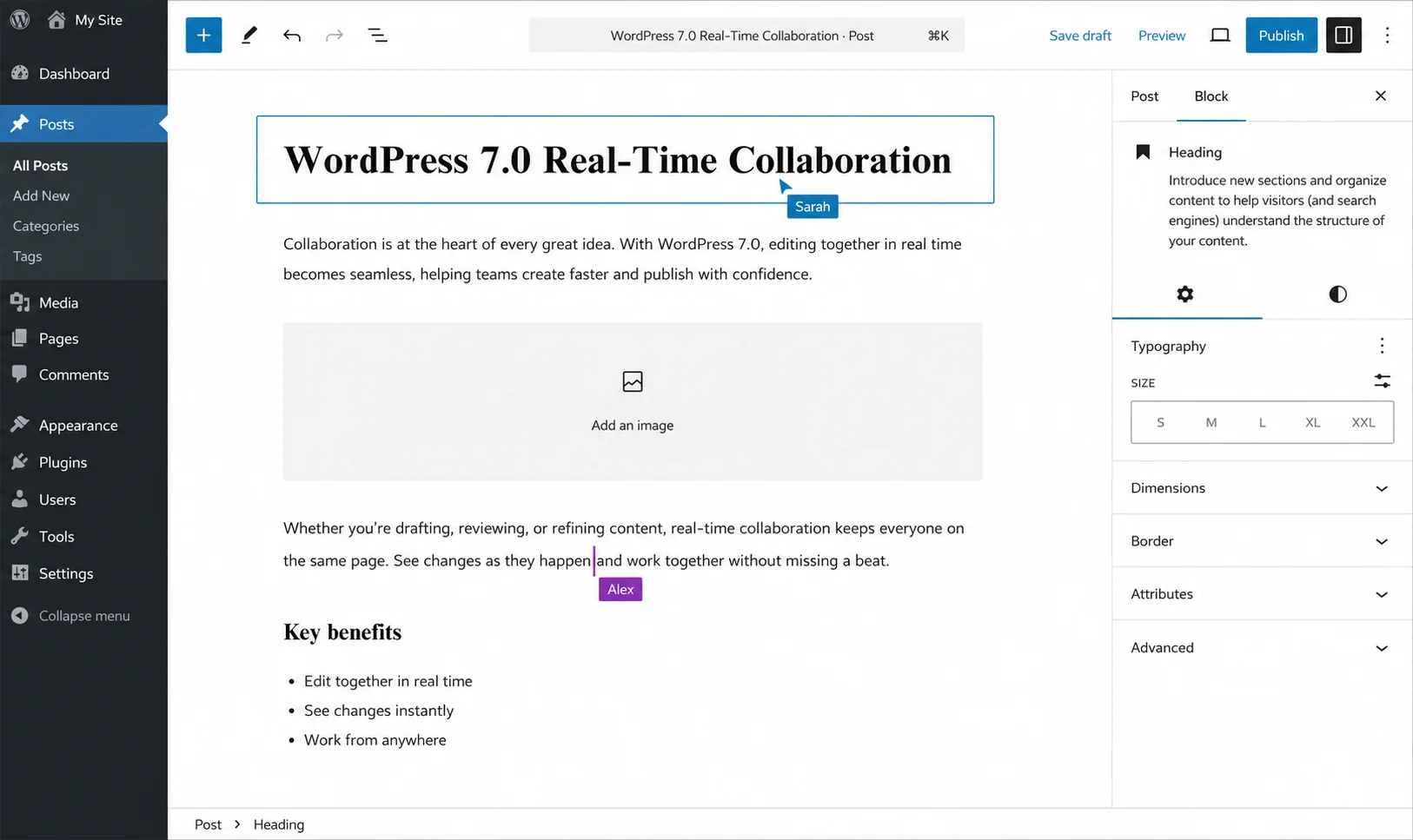
Let’s address the elephant in the room. Real-time collaborative editing, the Google Docs-like feature that would let multiple authors edit the same post simultaneously, was originally the headline feature of WordPress 7.0. It was pulled on May 8, 2026, less than two weeks before the final release.
Why It Was Removed
The WordPress core team cited four critical issues:
- Server load: Real-time sync requires constant, high-frequency data exchange (typically via WebSockets). Testing showed this significantly increased server load, particularly on shared hosting, which still hosts a large portion of WordPress sites.
- Storage architecture problems: Early implementations stored collaborative data in postmeta. This caused cache invalidation storms where every keystroke triggered cache clearing across the site, degrading overall performance. The team concluded that a dedicated custom database schema is needed.
- Race conditions and data corruption: Fuzz testing and broader beta testing uncovered recurring bugs where simultaneous edits could conflict or corrupt content.
- Scope creep: The feature touched almost every part of the editor. Shipping it in a beta-quality state across millions of wildly different site configurations was deemed too risky.
When Will It Arrive?
There is no confirmed timeline. The WordPress team has stated that real-time collaboration remains a core future goal, but it needs a fundamentally different storage architecture and more extensive testing before it can ship. For now, third-party collaboration plugins remain the way to go.
Should You Upgrade to WordPress 7.0?
Short answer: yes, but not on production without testing first.
Here is a practical checklist:
- Check your PHP version. You need PHP 7.4 at minimum. PHP 8.3 or higher is strongly recommended. Contact your host if you are unsure.
- Back up everything. Run a full site backup, including your database, files, and media. Use a plugin like UpdraftPlus or your host’s backup tools.
- Test in a staging environment. This is a major version release. Test your theme, plugins, and custom code on a staging copy before touching production.
- Check plugin compatibility. Visit each plugin’s changelog or support forum to confirm WordPress 7.0 compatibility. Pay special attention to page builders, SEO plugins, and e-commerce plugins.
- Review your custom code. If you have custom blocks, REST API integrations, or anything that touches WP_List_Table, review the WordPress 7.0 Field Guide for deprecations and breaking changes.
If your site is critical to your business or revenue, wait 1 to 2 weeks for the initial patch release (7.0.1) before upgrading. Early adopters will surface edge-case bugs that the core team will fix quickly.
Frequently Asked Questions
What is WordPress 7.0 codenamed?
WordPress 7.0 is codenamed Armstrong.
When was WordPress 7.0 released?
WordPress 7.0 was officially released on May 20, 2026.
Does WordPress 7.0 support real-time collaboration?
No. Real-time collaboration was removed from the final release due to performance, stability, and storage architecture issues. It remains a goal for a future version.
What PHP version does WordPress 7.0 require?
The minimum is PHP 7.4. The recommended version is PHP 8.3 or higher for the best security and performance.
What is the WP AI Client?
The WP AI Client is a new, provider-agnostic interface in WordPress 7.0 that lets themes and plugins communicate with AI models (such as OpenAI, Anthropic, or Google Gemini) through a standardized API, without managing provider-specific logic or credentials.
Is it safe to upgrade to WordPress 7.0?
It is safe if you follow best practices: test in a staging environment, back up your site, verify plugin compatibility, and ensure your PHP version meets requirements. Avoid upgrading directly on a live production site without testing.
What are DataViews in WordPress 7.0?
DataViews is a modern, React-based interface that replaces the legacy WP_List_Table. It offers table, grid, and list layouts with instant filtering, sorting, and bulk editing, with no page reloads required.
Final Thoughts
WordPress 7.0 is not a flashy, one-feature release. It is an infrastructure release, the kind that does not make for exciting screenshots but fundamentally changes what WordPress can do going forward. The AI infrastructure, the admin modernization, and the developer tooling all lay groundwork for the next generation of WordPress.
The real-time collaboration miss stings, especially for editorial teams that have been waiting years for it. But the decision to pull it rather than ship it broken was the right call. WordPress powers over 40% of the web. Stability is not optional.
If you are a site owner: test, back up, and upgrade at your own pace. If you are a developer: start exploring the Abilities API and PHP-only blocks, because they open up significant new possibilities. And if you are a plugin author: the AI Client and Connectors API are your cue to start building.
WordPress 7.0 Armstrong is not the most exciting release. But it might be the most important one in a long time.
Have questions about upgrading or want help testing WordPress 7.0 on your site? Drop a comment below or reach out. Happy to help.
Sources
- WordPress.org Official Release: https://wordpress.org/
- Search Engine Journal, WordPress 7.0 Breakdown: https://www.searchenginejournal.com/
- Kinsta, WordPress 7.0 Features: https://kinsta.com/
- WPMarmite, WordPress 7.0 Review: https://wpmarmite.com/
- Raidboxes, WordPress 7.0 Timeline: https://raidboxes.io/
- Bright Vessel, AI in WordPress 7.0: https://brightvessel.com/