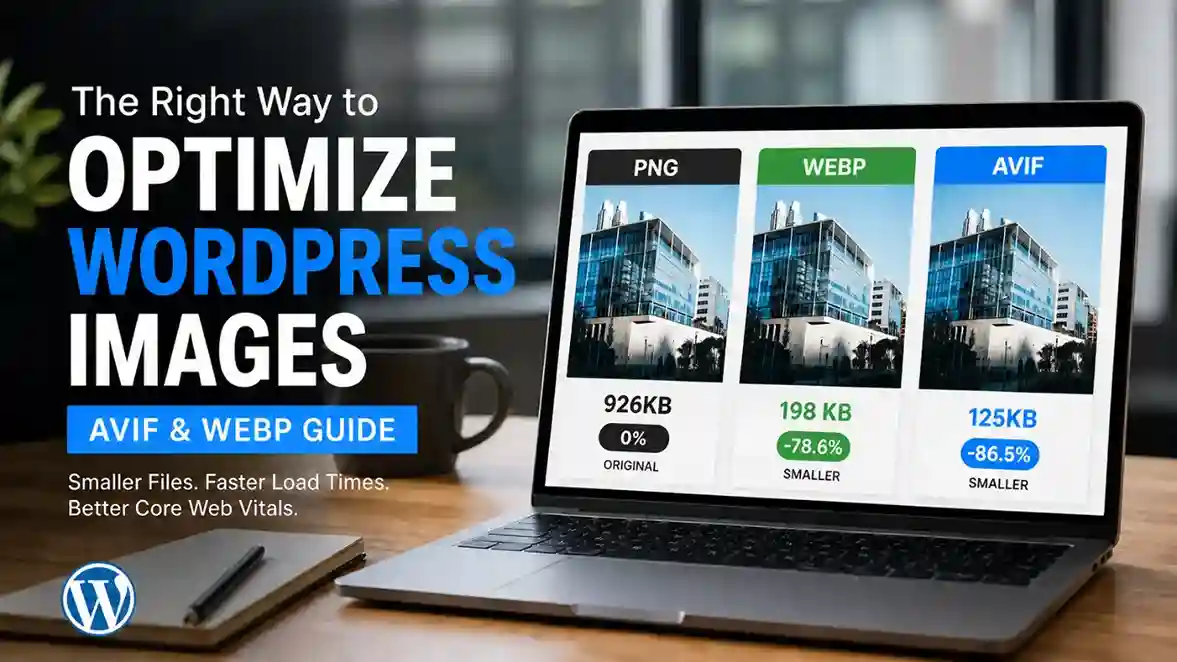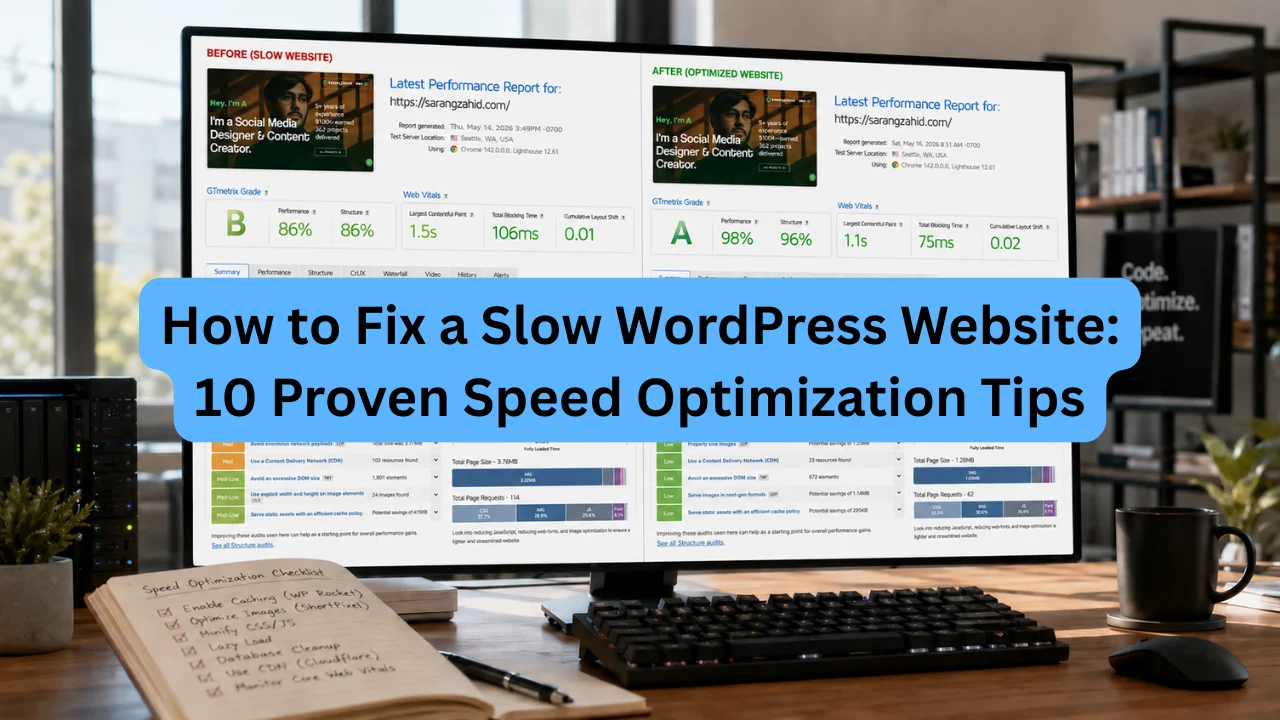
How to Fix a Slow WordPress Website: 10 Proven Speed Optimization Tips
Your WordPress website might be losing visitors right now without you realizing it. A page that takes more than three seconds to load pushes away nearly half of all visitors before they even see your content. According to Google’s research on page speed, as page load time increases from one second to three seconds, the probability of a bounce increases by 32 percent. That number climbs to 90 percent in five seconds.
Here’s the thing most guides won’t tell you: the problem is almost never WordPress itself. In my experience auditing WordPress sites, the slowness almost always comes down to a combination of bad hosting, unoptimized images, and a caching setup that either doesn’t exist or was configured incorrectly. These are fixable problems. Every single one.
Speed isn’t just a user experience issue either. It directly affects your search rankings. Google has confirmed that page speed is a ranking factor for both desktop and mobile, and Core Web Vitals are now baked into its algorithm. A slow site means lower rankings, fewer clicks, and lost revenue. Let’s fix that.
What Actually Makes a WordPress Site Slow?
WordPress isn’t slow by nature. It’s a dynamic platform, which means every page request triggers PHP execution and database queries unless you’ve set up something to handle that automatically. The problems show up when you layer cheap hosting, a bloated theme, a dozen plugins, and uncompressed images on top of that dynamic foundation.
The usual suspects, in rough order of how much damage they typically cause:
- Cheap shared hosting with no server-level caching
- Unoptimized images uploaded straight from a phone or camera
- Too many plugins, especially ones that load scripts on every page
- A heavy or poorly coded theme with bundled page builders and sliders
- No caching system at all
- Unminified and uncombined CSS and JavaScript
- Too many external scripts from third-party tools
- No CDN serving assets from locations near your visitors
- Database bloat from post revisions, spam, and orphaned data
- Outdated WordPress core, themes, or plugins
Rarely is it just one of these. It’s usually three or four stacking on top of each other.
How to Check If Your WordPress Website Is Actually Slow
Don’t guess. Before you touch a single plugin setting, run a proper diagnostic. Here’s what to use and what to look for.
Google PageSpeed Insights is the most important tool because it shows you real-user data (called Field Data) alongside a simulated lab test. The Field Data is what Google’s algorithm actually uses. Focus on your LCP (Largest Contentful Paint), INP (Interaction to Next Paint), and CLS (Cumulative Layout Shift) scores. If any of those are red in the Field Data section, that’s your priority.
GTmetrix is excellent for waterfall analysis. It shows you exactly which resources are taking the longest to load and in what order. A high TTFB (Time to First Byte) at the top of the waterfall almost always points to a server or hosting problem.
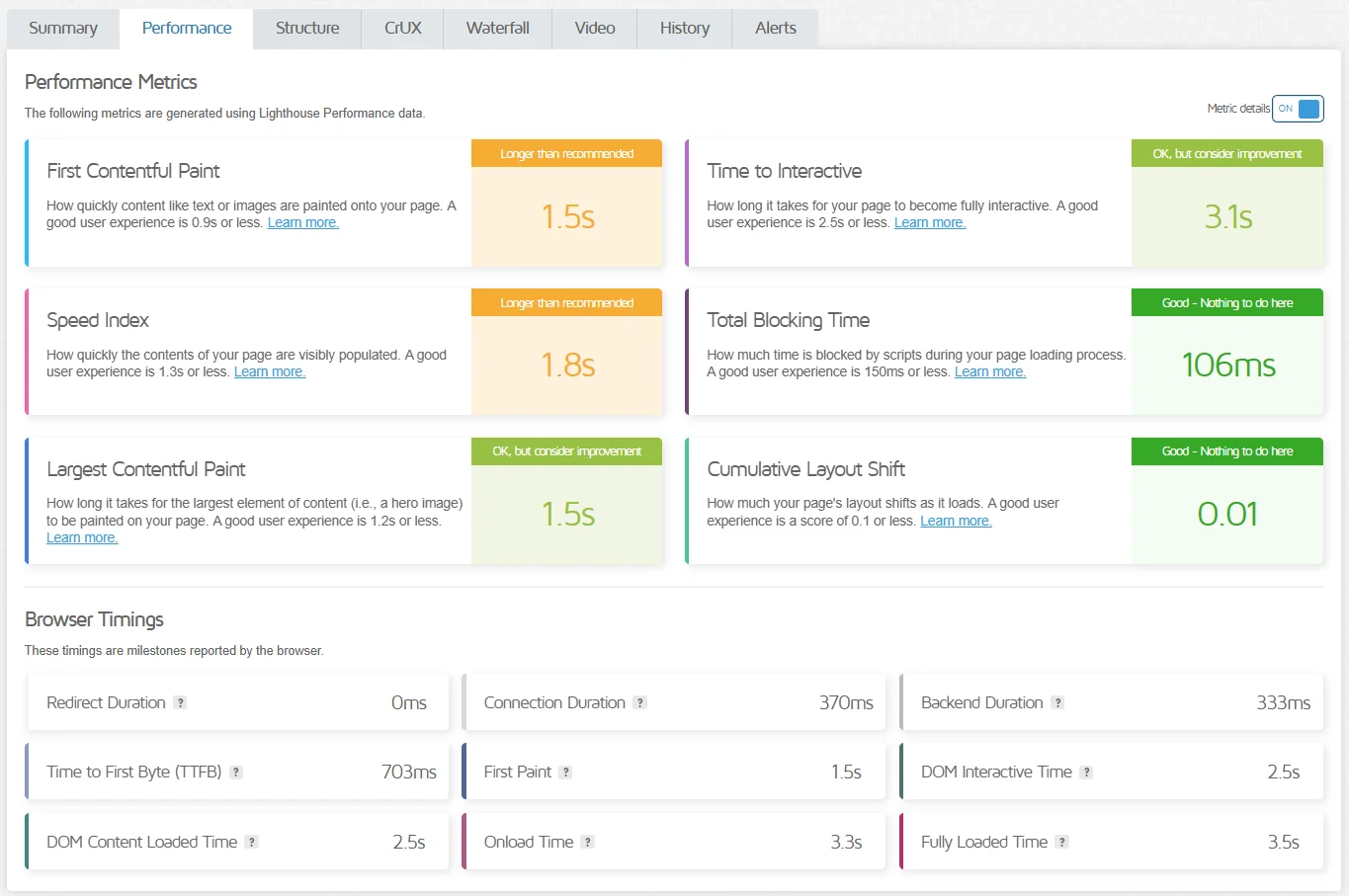
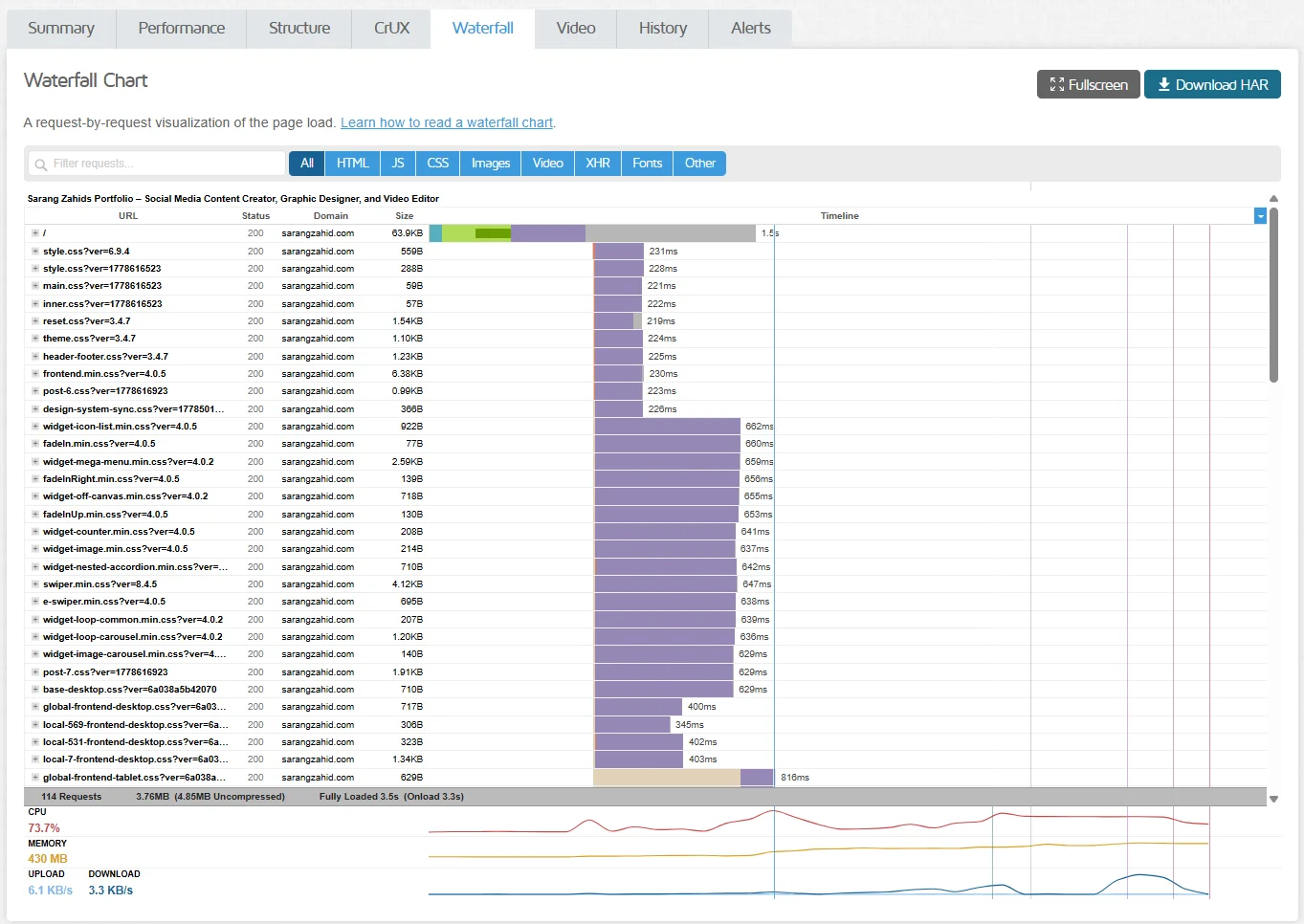
Pingdom Tools gives you an overall performance grade with a straightforward breakdown. It’s a good quick check.
When reading your results, here’s the shorthand:
- TTFB above 600ms = server problem, not a plugin problem
- Page size above 3MB = unoptimized images or too many scripts
- LCP above 2.5s = hero image or server response is too slow
- INP above 200ms = JavaScript is blocking user interactions
- CLS above 0.1 = images or fonts are causing layout shifts
Write down your baseline scores before you change anything. You’ll want to compare before and after.
10 Reasons Your WordPress Site Is Slow (And the Exact Fix for Each)
1. Poor Hosting Performance
If your TTFB is above 600ms, your hosting is the problem. No amount of plugin configuration fixes a slow server. I’ve seen sites where a client spent weeks fiddling with caching settings when they just needed to move off a $3/month shared plan. The moment they migrated to a managed WordPress host, their TTFB dropped from 900ms to under 150ms without changing anything else.
The fix:
- Upgrade to a managed WordPress host (Kinsta, WP Engine, or Cloudways)
- At minimum, move to a VPS instead of shared hosting
- Make sure your host runs PHP 8.2 or higher and uses LiteSpeed or Nginx
- Look for hosts with built-in server-level caching
💡 Pro Tip: Before paying for better hosting, ask your current host what PHP version you’re on. Many shared hosts still run PHP 7.4, which is significantly slower than 8.2. Upgrading your PHP version is often free and can shave 200-400ms off your load time overnight.
2. Too Many Plugins
The plugin problem isn’t really about count. It’s about quality and necessity. A site with 30 well-coded, focused plugins can load faster than a site with 12 bloated ones. The real issue is plugins that load JavaScript and CSS on every single page regardless of whether that page needs them.
The fix:
- Go to Plugins and honestly ask: “If I deleted this, would anything break?” If the answer is no, delete it.
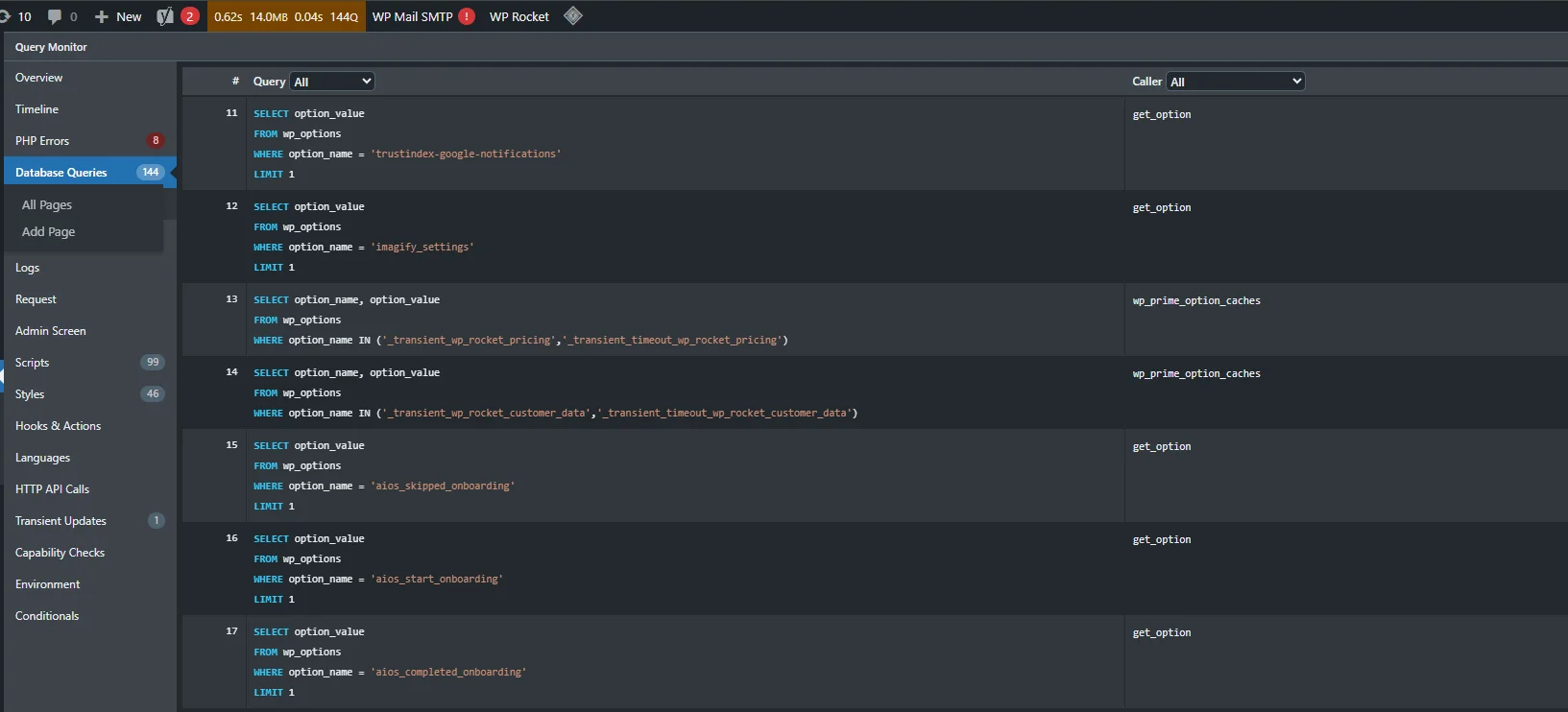
- Use Query Monitor to see which plugins are adding the most database queries and execution time
- For plugins that serve the same function, keep the lighter one
⚠️ Warning: Don’t just deactivate plugins you want to remove. Delete them. Deactivated plugins can still load certain files in some configurations. If you’re unsure, test on a staging site first.
3. Unoptimized Images
This is the single most common issue I see. In auditing WordPress sites, a large percentage of them are slow simply because the client uploaded raw photos directly from their iPhone or a stock photo site without compressing them first. A single uncompressed image can be 4-6MB when it only needs to be 80-150KB.
Before you buy new hosting or install a caching plugin, just run your images through TinyPNG or Squoosh. I’ve shaved 2-3 seconds off a client’s load time in 20 minutes doing nothing but this.
The fix:
- Compress existing images with Imagify or ShortPixel (both have bulk optimization tools)
- Convert images to WebP format, which is 25-35% smaller than JPEG at the same quality
- Always define width and height attributes on image tags to prevent layout shifts
- Set up automatic compression on upload so this never builds up again
💡 Pro Tip: Don’t lazy-load your hero image (the main image at the top of your page). Lazy loading above-the-fold images actually hurts your LCP score because the browser delays fetching the image it should be loading first. In WP Rocket, you can exclude specific images from lazy loading in the Media settings.
4. Heavy or Poorly Coded Theme
Most premium multipurpose themes are built to impress in a demo, not to perform in production. They bundle sliders, page builders, animation libraries, Google Fonts, and custom scripts that load on every page even if that page is a simple blog post that needs none of it.
The fix:
- Switch to a lightweight theme: Kadence, GeneratePress, or Astra are built for performance
- Use Asset CleanUp or Perfmatters to disable unused scripts on a per-page basis
- If you want the absolute fastest foundation, consider a modern WordPress Block Theme like Twenty Twenty-Four or Ollie. They load minimal CSS, zero jQuery in most cases, and work natively with the Block Editor. Page builders become optional instead of mandatory.
⚠️ Warning: If you’re considering switching themes on a live site, do it on a staging environment first. Theme switches can affect your layout, sidebars, widget areas, and custom code. Never switch themes directly on production.
5. No Caching System
WordPress rebuilds every page from scratch on every single request. That means PHP runs, the database is queried, and HTML is assembled fresh each time someone visits your site. Without caching, there’s no way to avoid this overhead at scale.
The fix:
- Step 1: Install WP Rocket (premium) or LiteSpeed Cache (free, best if your host uses LiteSpeed servers)
- Step 2: Enable Page Caching immediately after activation
- Step 3: Turn on GZIP compression
- Step 4: Enable Browser Caching so returning visitors load assets locally
- Step 5: Test your site in an incognito window to confirm nothing broke
⚠️ WooCommerce Warning: If you run a store, make sure your caching plugin is set to bypass the Cart, Checkout, and My Account pages. If those pages are cached, customers will see the wrong cart contents and checkout will break. Every major caching plugin has WooCommerce exclusions built in, but double-check that they’re actually enabled.
6. Unminified CSS and JavaScript
Developers write CSS and JavaScript in a human-readable format with comments, spaces, and long variable names. In production, none of that is needed by the browser. Minification strips it all out, and combining files reduces the number of HTTP requests the browser has to make.
The fix:
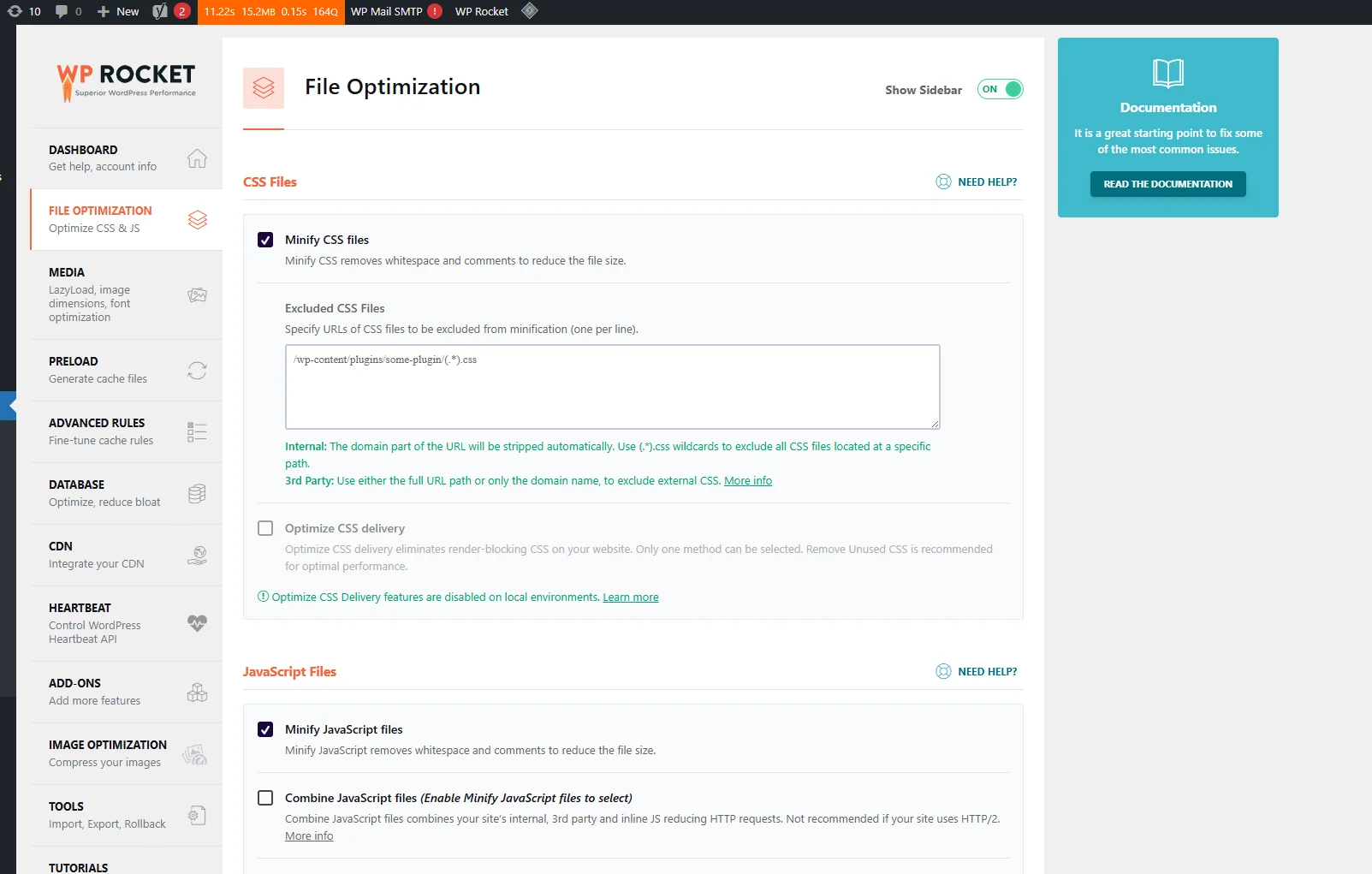
- Use your caching plugin (WP Rocket, LiteSpeed Cache) to minify and defer CSS and JS
- Enable Defer JavaScript to prevent render-blocking scripts from delaying your page paint
- If you’re seeing a poor INP (Interaction to Next Paint) score, enable Delay JavaScript Execution in WP Rocket or Perfmatters. This loads heavy scripts like chat widgets and analytics only after the user interacts with the page, which dramatically reduces main thread congestion.
💡 Pro Tip: If combining JavaScript breaks your site’s slider, navigation menu, or any interactive element, don’t force it. Turn off “Combine JS” and just keep Minify and Defer enabled. You’ll get about 90% of the performance benefit without any of the headaches.
7. Too Many External Scripts
Every third-party script on your page (chat widgets, Facebook Pixel, Google Tag Manager, analytics, heatmaps, ad networks) requires a DNS lookup, a new connection, and script execution from a server you don’t control. A single slow third-party server can block your entire page from loading.
The fix:
- Open Request Map Generator or the Network tab in Chrome DevTools and count every external request
- Remove anything that isn’t delivering measurable business value
- Load remaining scripts asynchronously or use Delay JS so they don’t block rendering
- Host third-party scripts locally where possible (Google Analytics can be self-hosted via tools like CAOS)
According to HubSpot’s research on page load and conversion rates, even a one-second delay in page response can reduce conversions by 7 percent. Third-party scripts are one of the quietest and most overlooked contributors to that delay.
8. No CDN Usage
If all your files are served from a single server in one location, visitors far from that server experience noticeably slower load times. Every image, stylesheet, and script has to travel further.
The fix:
- Cloudflare has a solid free tier and is the easiest starting point for most sites
- BunnyCDN and KeyCDN offer more granular control at low cost
- Most managed WordPress hosts include CDN integration natively
- Once your CDN is connected, static assets (images, CSS, JS) are served from servers close to each visitor globally
9. Database Bloat
WordPress saves a revision every time you update a post. Spam comments pile up. Plugins store data in the options table and never clean it up. Transients expire but don’t get deleted automatically. Over time, your database becomes bloated with data that serves no purpose and slows down every query.
The fix:
- Step 1: Install WP-Optimize and run a full cleanup (post revisions, expired transients, spam, trash)
- Step 2: Limit revisions going forward by adding this to your wp-config.php: define(‘WP_POST_REVISIONS’, 5);
- Step 3: Schedule automatic cleanups monthly through WP-Optimize’s scheduler
10. Outdated WordPress, Themes, or Plugins
Every WordPress release includes performance improvements alongside security patches. Running outdated software means missing those gains and staying vulnerable to exploits.
The fix:
- Keep WordPress core, your active theme, and all plugins updated
- Use a staging environment to test updates before applying them to production
- If you manage multiple sites, ManageWP or MainWP lets you run updates centrally across all of them
⚠️ Warning: Never run major updates (WordPress version upgrades, theme overhauls) directly on a live site. One bad update with an incompatible plugin can take a site offline. Always test on staging first.
The Speed Fix Triage Workflow (What to Do and When)
Instead of another generic step-by-step list, here’s a realistic workflow based on how much time you actually have. Tackle these phases in order.
Phase 1: The Quick Wins (Takes About 10 Minutes)
These changes cost nothing and require almost no technical knowledge. Do these today:
- Run your site through Google PageSpeed Insights and write down your scores
- Delete inactive plugins and themes you’re not using
- Check your PHP version in your host control panel. If it’s below 8.1, upgrade it immediately.
- Run existing images through TinyPNG or install Imagify and run a bulk compression
You’ll often see a 10-20% improvement from Phase 1 alone.
Phase 2: The Deep Clean (Takes 1-2 Hours)
These require a bit more setup but have a significant impact:
- Install and configure WP Rocket or LiteSpeed Cache
- Enable page caching, browser caching, and GZIP compression
- Set up Cloudflare as your CDN (free tier is fine for most sites)
- Enable JS deferral and test every page for broken elements
- Run a database cleanup with WP-Optimize
- Audit external scripts and remove anything unnecessary
Phase 3: The Heavy Lifting (Takes a Weekend or Longer)
These changes are structural and require more careful planning:
- Migrate to better hosting if your TTFB is still above 500ms after Phase 1 and 2
- Switch to a lightweight theme if your current one is adding more than 300KB of assets
- Consider rebuilding heavily bloated pages with a native Block Editor approach instead of a page builder
- Set up Redis object caching if you’re on a VPS or managed host that supports it (huge win for WooCommerce and membership sites)
- Implement server-side rendering optimizations or custom PHP performance improvements (this is where a developer becomes valuable)
Advanced WordPress Speed Optimization Tips
Once you’ve covered the fundamentals, these techniques push your scores further.
Lazy loading below-the-fold images is one of the easiest wins. WordPress has had native lazy loading since version 5.5. Just make sure it’s not applied to your hero image.
Preloading critical fonts prevents invisible text and layout shifts. Add <link rel=”preload”> tags for fonts that appear above the fold. WP Rocket’s font optimization handles this automatically.
Reducing render-blocking resources is critical for LCP. Move non-essential scripts to the footer and use async or defer attributes. WP Rocket and LiteSpeed Cache both handle this through their file optimization settings.
Prefetching DNS for external domains reduces connection overhead. Add <link rel=”dns-prefetch”> hints in your page head for fonts.googleapis.com, your analytics domain, and your CDN domain.
Limiting third-party scripts is advanced-level discipline. Use the Network tab in Chrome DevTools to identify every external domain your pages are contacting. Anything that isn’t business-critical gets removed.
Common Mistakes That Keep WordPress Sites Slow
These errors undo optimization work even when the right plugins are installed:
Stacking multiple caching plugins. WP Rocket and LiteSpeed Cache running simultaneously creates unpredictable conflicts. Pick one and fully remove the others.
Enabling aggressive JS/CSS combining without testing. Combined files load in a different order than individual files. Themes and plugins that depend on load order break silently. Always test every page template after enabling combination.
Optimizing desktop scores while ignoring mobile. Google uses your mobile performance for ranking via mobile-first indexing. A site that passes PageSpeed Insights on desktop but fails on mobile is still a problem.
Treating the plugin score as the goal. A Rank Math score of 95 or a PageSpeed score of 100 in a lab test doesn’t mean your real users have a good experience. Always check Field Data in PageSpeed Insights and your Core Web Vitals report in Google Search Console.
Ignoring TTFB. Plugins optimize what happens after the server responds. If the server takes 900ms to respond in the first place, you’re starting every page load at a significant deficit that no frontend plugin can fully recover.
When to Hire a WordPress Developer
Some performance problems require more than plugin configuration. Here’s when it’s time to bring in a professional:
- Your TTFB is high even on managed hosting, which usually points to inefficient database queries or PHP execution issues that need code-level diagnosis
- Optimization plugins are breaking your site’s functionality and you can’t identify why
- You’re running WooCommerce or a membership platform and need object caching, Redis configuration, or custom database optimization
- You want a performance-first build from scratch rather than trying to optimize a site that was built without performance in mind
Working with a team that offers WordPress web development services means getting a setup that’s tailored to your specific stack, not a generic configuration copied from a tutorial. For high-traffic sites or ecommerce stores where load time directly affects revenue, this investment pays for itself quickly.
Conclusion
A slow WordPress site is fixable. In almost every case, the cause is identifiable and the solution is practical.
Start with Phase 1: get your baseline scores, clean up inactive plugins, check your PHP version, and compress your images. If you’re still slow after that, move to Phase 2 and set up caching, a CDN, and JS deferral properly. If deep structural problems remain after Phase 2, Phase 3 is where you address hosting, theme architecture, and object caching.
The goal isn’t a perfect lab score. It’s a passing Core Web Vitals assessment in Google Search Console based on real user data, and a site that loads fast enough to keep real visitors engaged. Measure everything, change one thing at a time, and iterate from there.
FAQs
What is a good load time for a WordPress website?
Aim for under two seconds on mobile for total page load time. For Core Web Vitals specifically, you need LCP under 2.5 seconds, CLS below 0.1, and INP under 200 milliseconds. The thresholds that matter most are the ones in your Field Data in Google Search Console, since that’s what Google actually measures for ranking purposes.
Do more plugins always make a WordPress site slower?
Not necessarily, but they often do. A single well-coded plugin with minimal overhead is rarely a problem. The issues come from poorly coded plugins that load scripts on every page, plugins that make excessive database queries, and redundant plugins doing the same job. Quality and necessity matter far more than the total count.
Will a CDN make a difference for a small site?
Yes, especially if you have any visitors outside your server’s geographic region. Cloudflare’s free tier is genuinely useful even for small sites and takes about 20 minutes to set up. Beyond speed, it also adds basic DDoS protection and can reduce server load during traffic spikes.
How often should I clean my WordPress database?
Monthly for active blogs or ecommerce stores. Every two to three months for smaller sites with less frequent publishing. Automate it with WP-Optimize’s scheduled cleanup so it happens without any action from you.
Can a slow WordPress site hurt my Google rankings?
Yes, directly. Core Web Vitals are a confirmed Google ranking signal. Pages that fail the LCP, INP, or CLS thresholds are at a measurable disadvantage against competitors whose pages pass. Beyond rankings, the user experience impact (higher bounce rates, lower time on site) sends additional negative signals that compound the ranking effect over time.
What is INP and why does it matter for WordPress sites in 2026?
INP stands for Interaction to Next Paint. It replaced First Input Delay (FID) as a Core Web Vitals metric in 2024 and measures how responsive your site is to every user interaction, not just the first one. WordPress sites that load heavy JavaScript from page builders, chat widgets, and analytics tools frequently fail INP because those scripts block the browser’s main thread. The fix is to use a plugin’s “Delay JavaScript Execution” feature (available in WP Rocket and Perfmatters) to load those scripts only after the user first interacts with the page.