Your WordPress website is slow. You know it’s slow. But every guide you’ve found is written for developers full of jargon about “server response times,” “render-blocking resources,” and “Time to First Byte.”
This guide is different. I’m going to explain why your site is slow and exactly what to do about it in plain English with no technical background required. Whether you fix it yourself or hand this list to a developer, you’ll understand what’s happening and why it matters.
Let’s start with the most important question.
Why Your Site Speed Actually Matters (More Than You Think)
Site speed is not just a technical metric. It directly affects your revenue.
Here’s the reality:
- Google uses page speed as a ranking factor. Slow sites rank lower in search results. If you’re investing in SEO, a slow site is quietly undermining all of it.
- Visitors leave slow sites. Research consistently shows that most users will abandon a page that takes longer than 3 seconds to load on mobile. Every second of delay costs you visitors.
- Google’s Core Web Vitals are now ranking signals. Google measures real-world speed experiences and factors them into rankings. A poor Core Web Vitals score can suppress your rankings even with great content and backlinks.
If your site loads in 6–8 seconds, you’re probably losing 50–60% of your potential visitors before they’ve even seen your homepage. That’s a significant number of potential customers going straight to a competitor.
Step 1: Measure Your Speed First
Before fixing anything, you need to know where you stand.
Tools to Use (All Free)
Google PageSpeed Insights (pagespeed.web.dev) Enter your URL and Google will give you a score out of 100 for both desktop and mobile, along with specific issues to fix. Pay attention to the mobile score that’s where most businesses struggle and where Google focuses its attention.
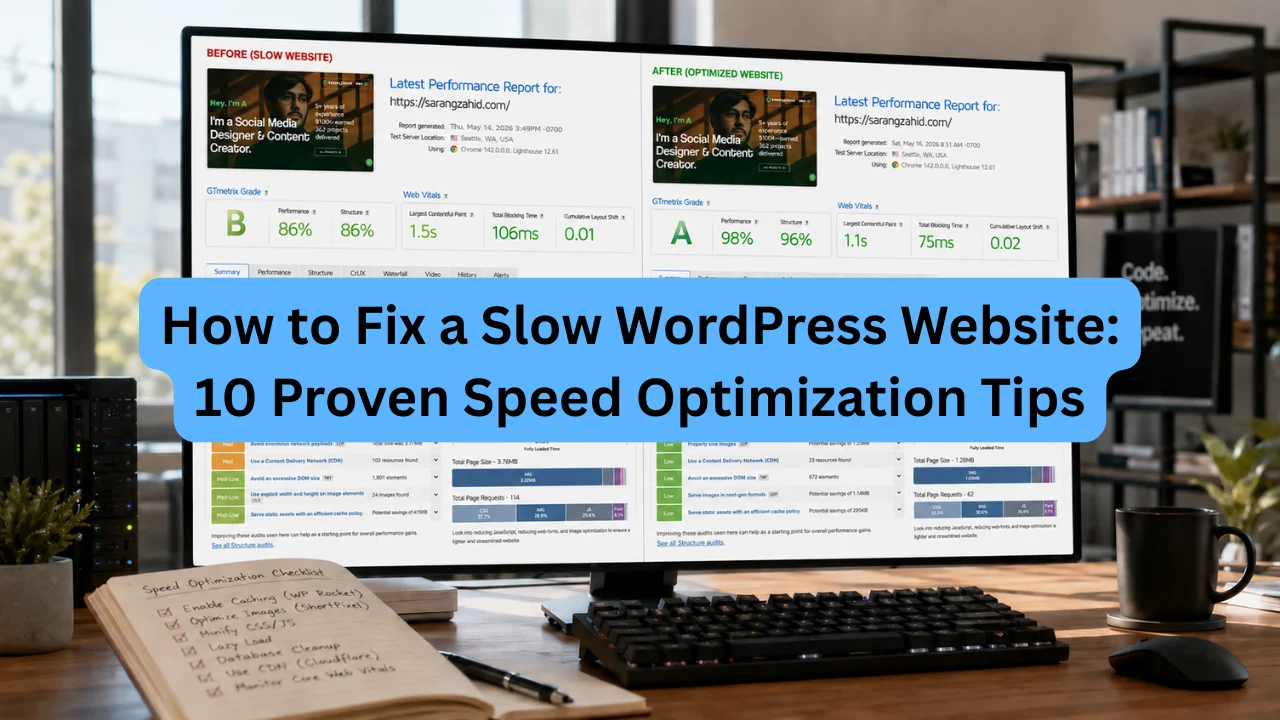
GTmetrix (gtmetrix.com) Gives you a letter grade, load time, and a waterfall chart showing exactly which elements are slowing your page down. Excellent for diagnosing specific problems.
Google Search Console If you have this set up (you should), go to Core Web Vitals under the “Experience” section. This shows real-world speed data from actual visitors to your site.
What scores to aim for:
- PageSpeed score: 70+ on mobile (90+ is excellent)
- Load time: under 3 seconds
- Core Web Vitals: all metrics showing “Good” (green)
Now that you have your baseline, let’s fix it.
Step 2: Fix Your Hosting (The Biggest Single Factor)
If there’s one thing that will have the biggest impact on your WordPress speed, it’s your hosting.
Most small businesses launch on budget shared hosting plans that cost $3–$5/month on providers like Bluehost, GoDaddy, or generic cPanel hosts. These hosts put hundreds or thousands of websites on the same server. When other sites on your server get traffic spikes, your site slows down. The resources are shared and limited.
This is the equivalent of running a restaurant in a building where the kitchen is shared with 200 other restaurants. Chaos.
What Good Hosting Looks Like
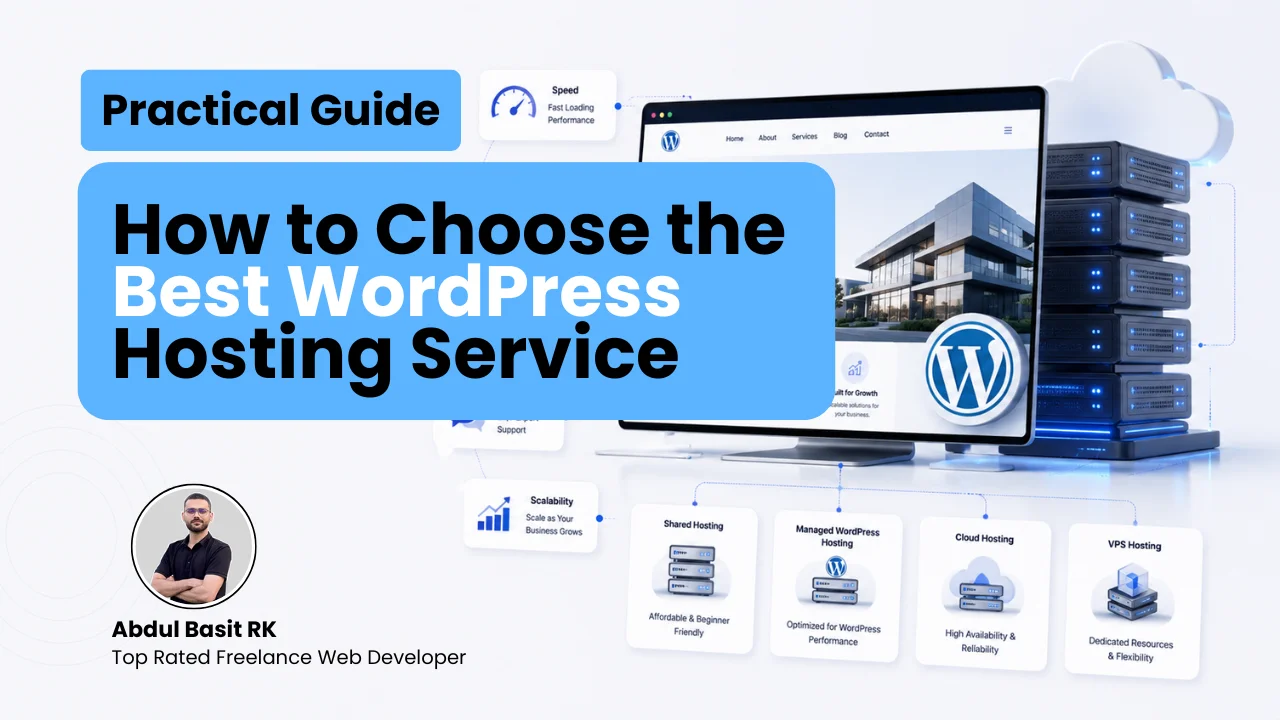
Managed WordPress Hosting is hosting specifically optimized for WordPress. These providers handle server-level caching, automatic updates, security hardening, and performance tuning at the infrastructure level before you’ve done anything in WordPress itself.
Recommended providers:
- SiteGround – (GrowBig or GoGeek plan) excellent performance, Australian/UK/US data centers, ~$20–$30/month
- WP Engine – premium managed hosting, used by agencies worldwide, ~$25–$50/month
- Kinsta – top-tier performance on Google Cloud infrastructure, ~$35/month
- Cloudways – more flexible cloud hosting (DigitalOcean/Vultr/AWS), ~$14–$30/month
The ROI is immediate. A business paying $5/month for slow hosting that drives visitors away is paying far more in lost revenue than the $25/month upgrade would cost.
Step 3: Install a Caching Plugin
Caching is the process of storing a “pre-built” version of your pages so WordPress doesn’t have to rebuild them from scratch every time someone visits. Think of it like this: instead of your site going to the database and assembling the page every single visit, it just serves a saved copy. Much faster.
Recommended caching plugins:
WP Rocket (~$59/year) – the gold standard. Handles caching, minification, lazy loading, and more, all from a clean interface. Widely considered the most effective WordPress performance plugin available.
LiteSpeed Cache (free) – excellent if you’re on a LiteSpeed server (many managed hosts use this). Free and highly capable.
W3 Total Cache (free) – more complex to configure but powerful and free.
For most business owners, WP Rocket is worth the $59/year investment. It works out of the box and doesn’t require deep technical knowledge to configure effectively.
Step 4: Optimize Your Images
Images are almost always the biggest contributor to slow page load times. A single unoptimized hero image can be 3–5MB that’s larger than the rest of your page combined.
Here’s the problem: most business owners upload photos directly from their phone or camera (often 4-8MB each), add them to their WordPress media library, and assume WordPress handles the rest. It doesn’t.
What Needs to Happen to Every Image
Resize it. A photo taken on a modern smartphone might be 4000px × 3000px. Your website doesn’t need that. Anything over 1200–1500px wide for a full-width image is overkill. Use a tool like Squoosh (squoosh.app) to resize before uploading.
Compress it. Even after resizing, images can be compressed significantly without visible quality loss. The free plugin Smush or the premium ShortPixel will compress your entire media library automatically.
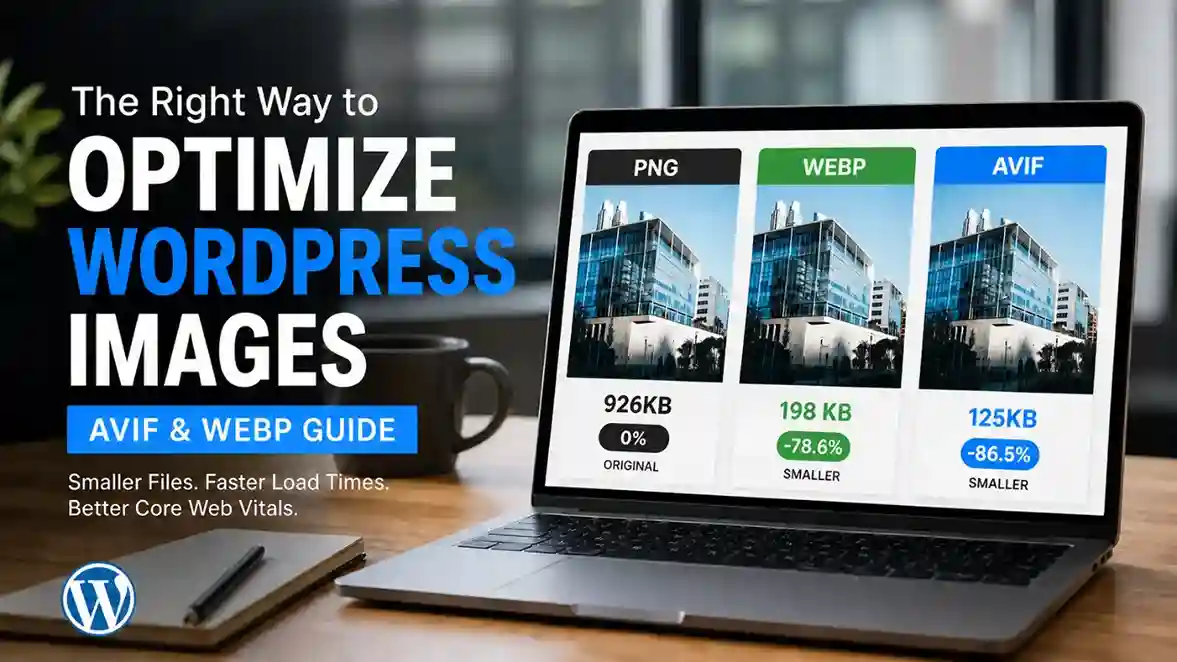
Convert to WebP format. WebP is a modern image format that’s 25–35% smaller than JPEG at equivalent quality. Most caching plugins (including WP Rocket) can convert your images to WebP automatically.
Use lazy loading. This means images only load when a visitor scrolls to them, rather than all loading at once when the page opens. WP Rocket enables this automatically. WordPress 5.5+ has it built in for basic cases.
If your site has lots of images or galleries, portfolio, product photos. Image optimization alone can cut your load time in half.
Step 5: Minimize and Combine CSS and JavaScript Files
Every WordPress theme and plugin adds CSS (style) and JavaScript (functionality) files to your website. A typical WordPress site might load 20–40 separate files. Each file requires a separate request to the server. More requests = slower load.
Minification removes unnecessary whitespace, comments, and formatting from these files, making them smaller. Combining merges multiple files into one, reducing the number of server requests.
Most good caching plugins (WP Rocket, LiteSpeed Cache) handle this automatically. In WP Rocket, there’s a “File Optimization” tab which enables CSS and JavaScript minification and combination with one click.
Important caveat: Combining JavaScript files can occasionally break website functionality. If you enable this and something on your site stops working, disable the JS combining option. This is common enough that most developers enable it, test thoroughly, and exclude specific scripts if needed.
Step 6: Use a Content Delivery Network (CDN)
A CDN stores copies of your website’s static files (images, CSS, JavaScript) on servers around the world. When someone visits your site, they receive files from the server closest to them rather than from your hosting server.
For example: if your hosting server is in the UK and a visitor is in Dubai, without a CDN they’re loading all your files from the UK. With a CDN, they load files from a nearby server, significantly reducing load time.
Cloudflare offers a free CDN tier that’s genuinely excellent and widely used. Many managed hosts (WP Engine, Kinsta, SiteGround) include their own CDN. WP Rocket also integrates with several CDN providers.
For most small business websites, Cloudflare’s free plan is sufficient and takes about 20 minutes to set up.
Step 7: Clean Up Your WordPress Database
Over time, WordPress accumulates a lot of unnecessary data: post revisions (every auto-save creates a revision), spam comments, transients (temporary data), orphaned metadata, and more.
A bloated database slows down page generation times. Cleaning it up periodically keeps things running smoothly.
Tools for this:
- WP-Optimize (free) – cleans database, caches pages, compresses images. Does it all.
- Advanced Database Cleaner (free version available) – more granular control over what gets cleaned
Run a database cleanup quarterly. Set it up to run automatically.
Step 8: Audit and Remove Unnecessary Plugins
Every active plugin on your WordPress site adds code that runs on every page load. Twenty plugins each adding a small overhead adds up quickly.
Go through your active plugins and ask honestly: am I actually using this? When did I last use it?
Common bloat culprits:
- Sliders (most add heavy JavaScript even if no sliders are displayed)
- Social sharing plugins with excessive scripts
- Old contact form plugins that were never removed after switching
- “All-in-one” plugins where you only use one feature
- Backup plugins running too frequently
Replace multiple plugins with single, lightweight alternatives where possible. For example, one good all-in-one SEO plugin (Yoast or Rank Math) rather than three separate plugins doing overlapping SEO tasks.
What to Tackle First
If all of this feels overwhelming, here’s a priority order:
- Fix your hosting – if you’re on budget shared hosting, it makes biggest impact
- Install WP Rocket – handles caching, image lazy loading, and file optimization in one plugin
- Optimize your images – use ShortPixel or Smush to batch-compress your media library
- Set up Cloudflare CDN – free and makes a real difference globally
- Clean up plugins – remove anything you’re not actively using
Do these five things and most WordPress sites go from sluggish to fast within a few hours. The PageSpeed score improvement is usually dramatic.
When to Call a Developer
Some speed issues require more than plugin configuration:
- Your theme has poorly written code generating excessive database queries
- Third-party scripts (chat widgets, ad pixels, tracking tools) are slowing your site
- Your Core Web Vitals have specific issues with Largest Contentful Paint or Cumulative Layout Shift
- You’ve done the basics and the score is still below 50
These issues require code-level intervention. A developer can diagnose and fix them and the improvements are often dramatic.
Want Your Site Audited Professionally?
I offer WordPress performance audits for business owners who want to know exactly what’s slowing their site down and exactly what to fix. I’ll give you a prioritized action plan, whether you want to implement it yourself or have me do it for you.
[Request a free speed audit →]
I’ll have your PageSpeed analysis and recommendations back to you within 24 hours.